How to Upload Background Images on AmniSphere Web
For best results when uploading background noise, make sure that the background images you are using reflect the area where object detection will occur. The angle that your background image is captured from should match the angle that will be used to detect objects.
Additionally, it is important to note that the background where you are collecting objects should not be the same as the background where you are detecting objects.
Navigate to the Backgrounds Tab
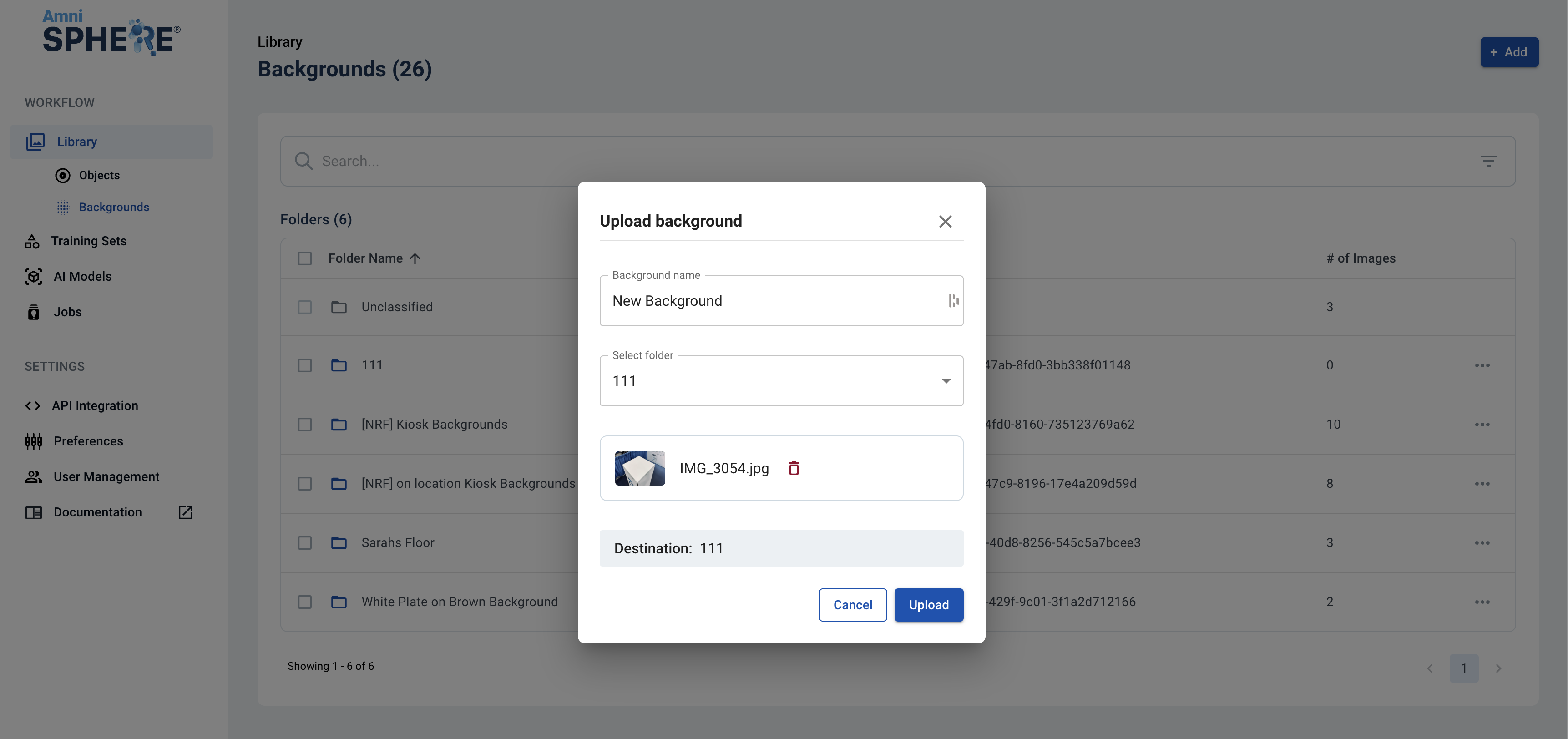
After logging in using your Amniscient credentials, navigate to the Library tab. Make sure you are within the Backgrounds sub-tab. In this tab you can view, edit, and search for backgrounds.
Upload Background
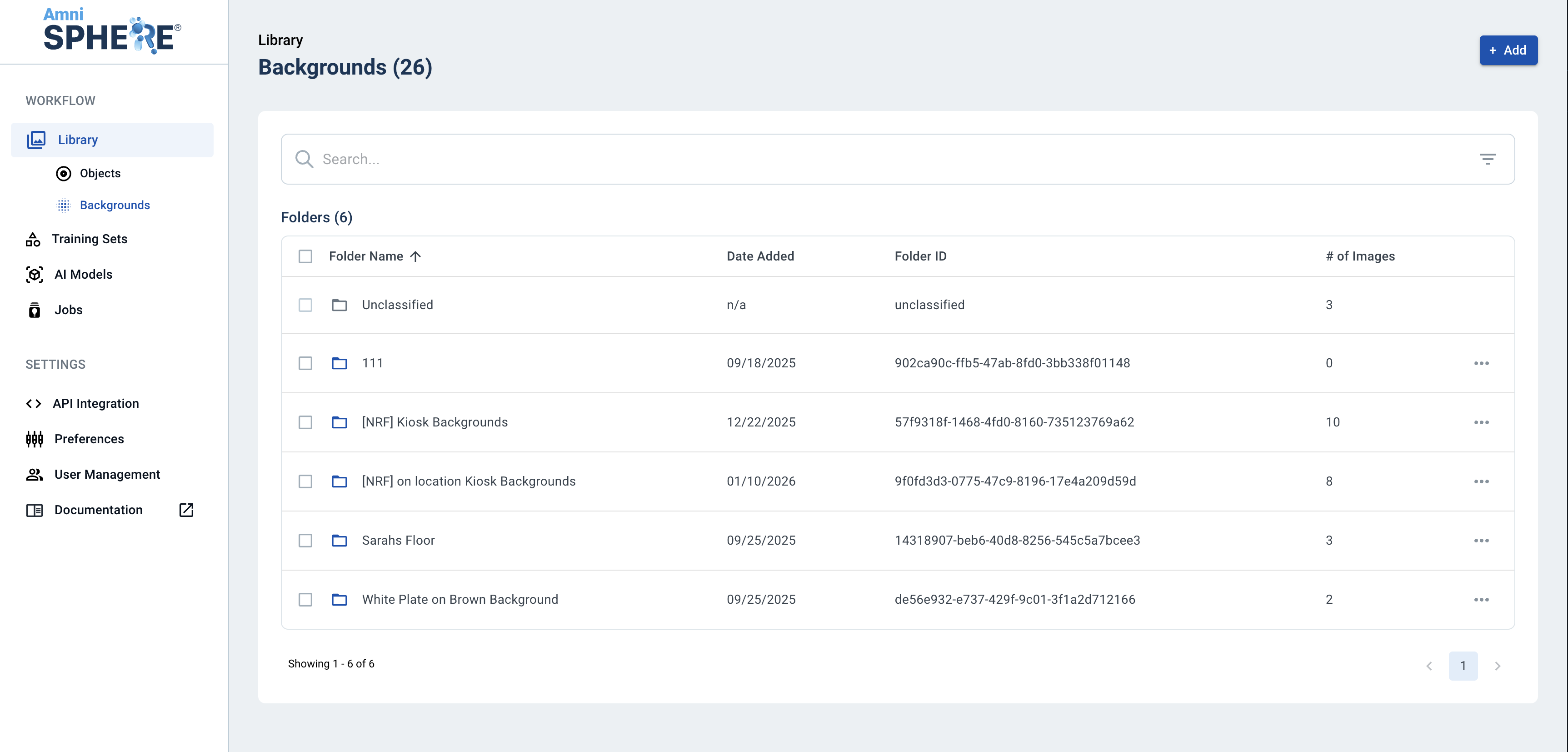
Click on the “Add” button in the upper right corner. Once the dropdown appears, click on “Upload Background”.
Enter Background Details
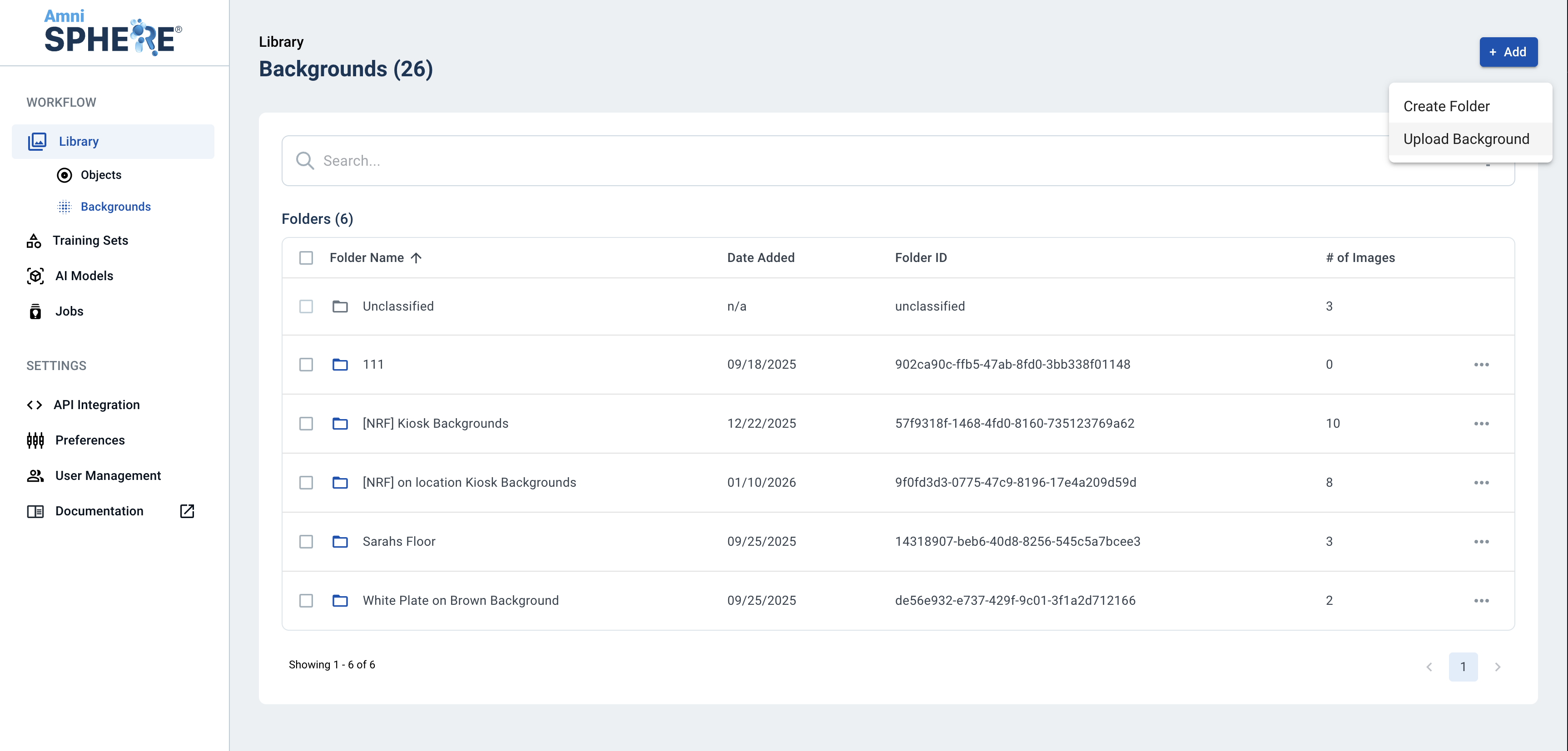
Select a PNG, JPG, or JPEG file to upload. The image file you choose must be in landscape orientation and have a resolution of at least 1080p.
Add a unique name for your background image. Optionally, you can also add this background to an existing folder. If you do not add your background to an existing folder on upload, it will be placed in the “Unclassified” folder by default. Click on “Upload” and you will receive a pop up notifying you that your background was upload! You will now be able to view your background within your Library on the AmniSphere web platform.