How to Train an AI Model on AmniSphere Web
Navigate to the Training Sets tab
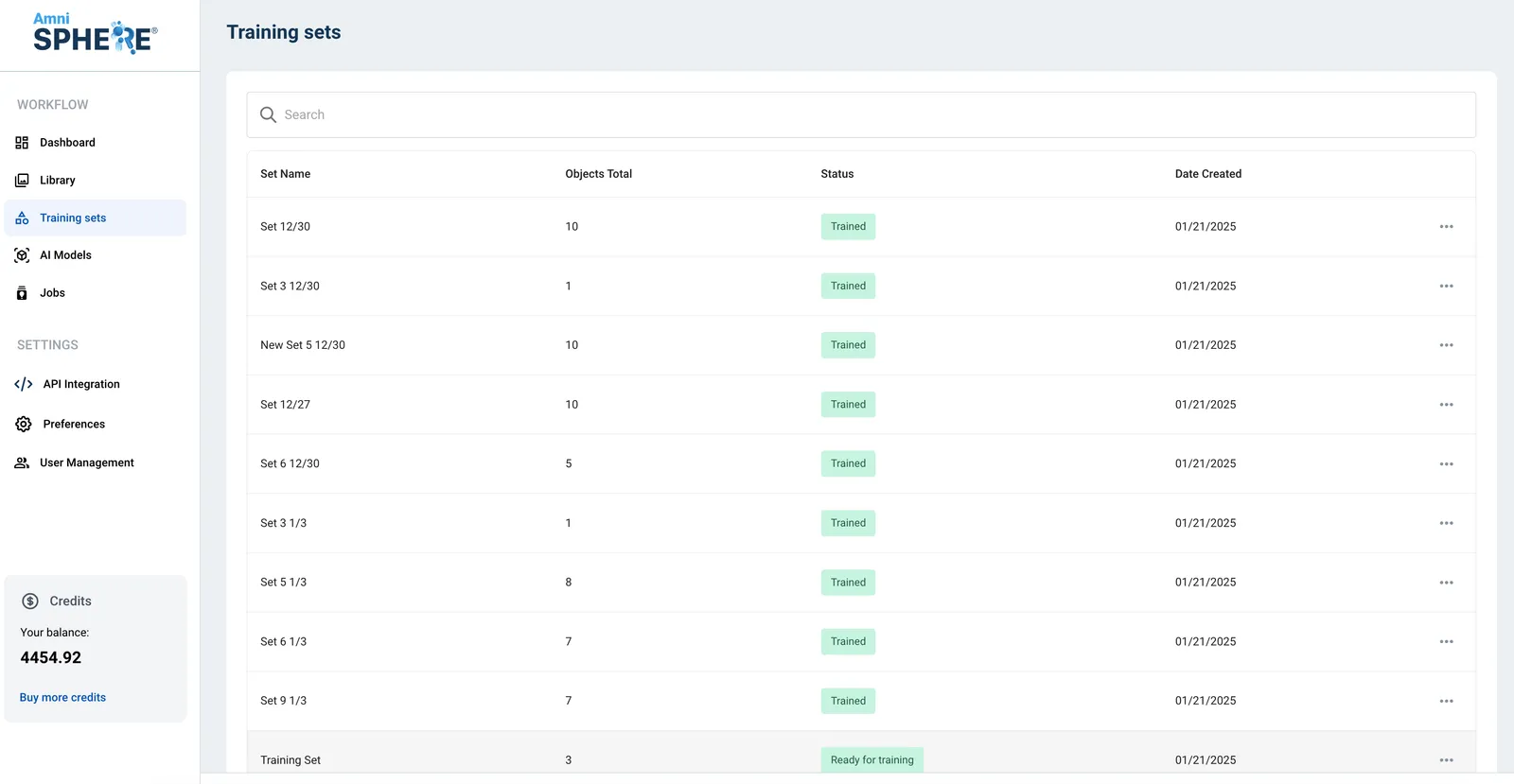
After logging in using your Amniscient credentials, navigate to the Training Sets tab. In this tab you can view, edit, search, and delete your existing training sets.
Meet the Training Requirements
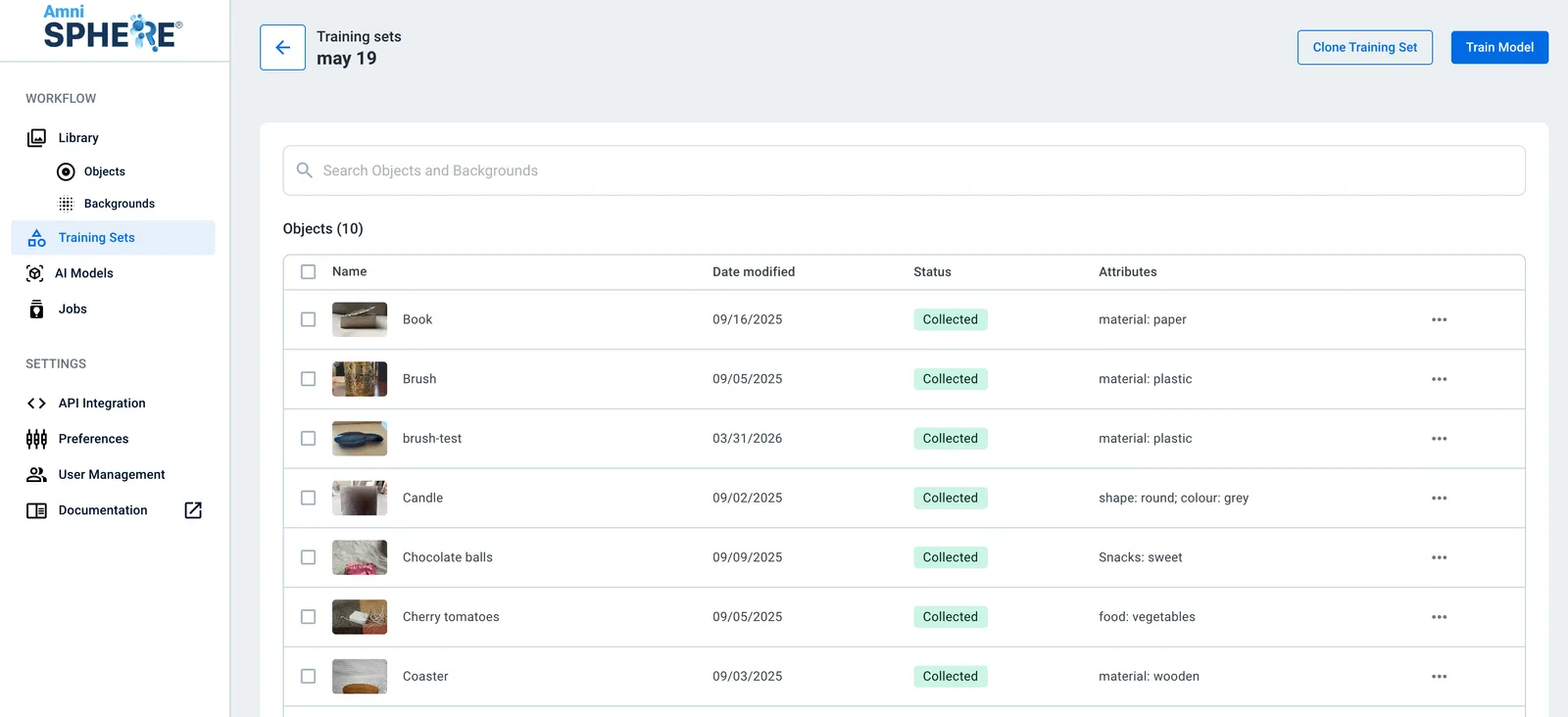
Note that in order to train a model your training set:
- Must contain at least five objects
- Must contain at least three backgrounds
- All objects within the training set must be collected
Once these requirements are met, the set will appear with the status “Ready for Training”.
Monitor Annotation & Labeling Progress
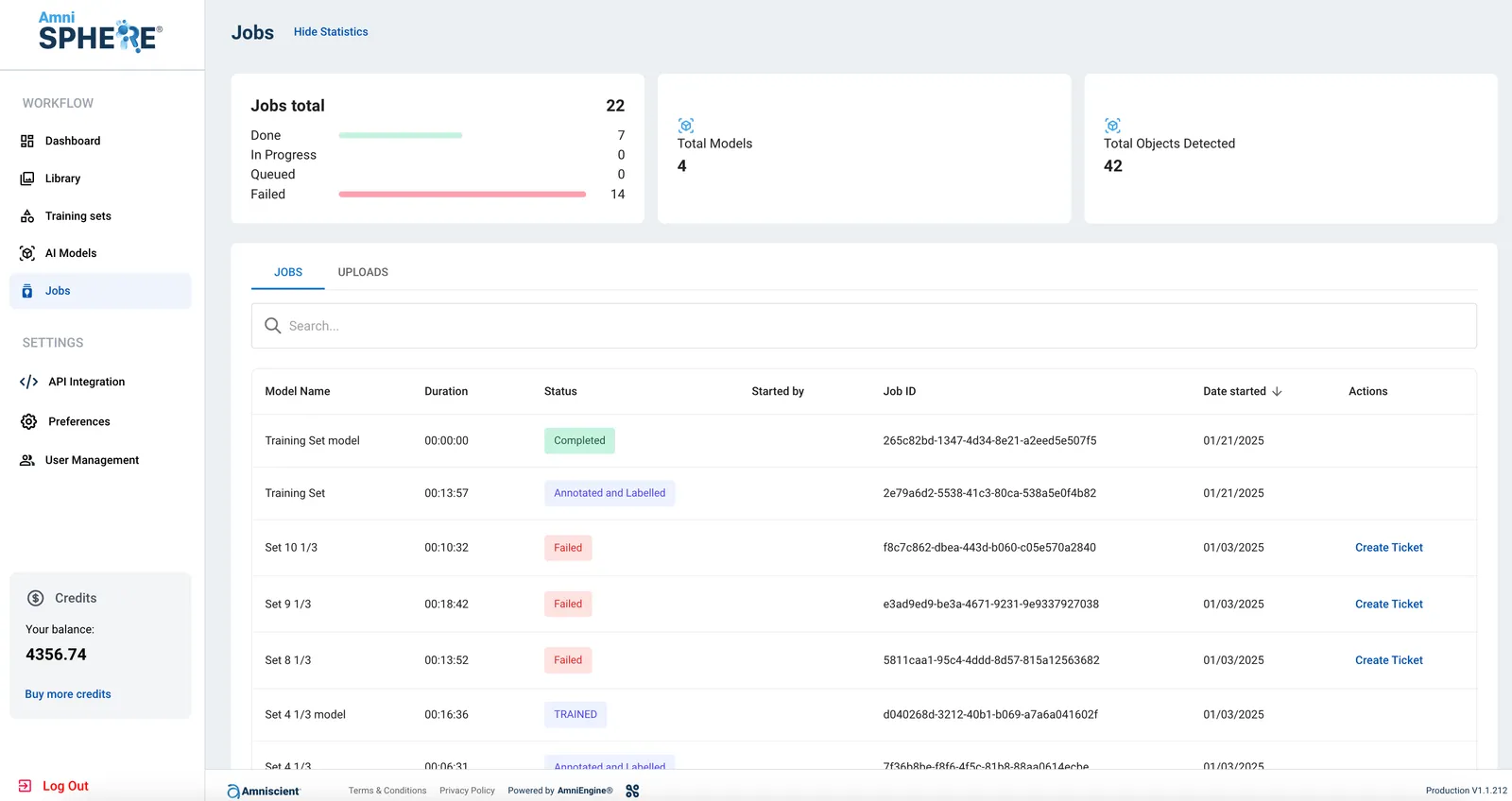
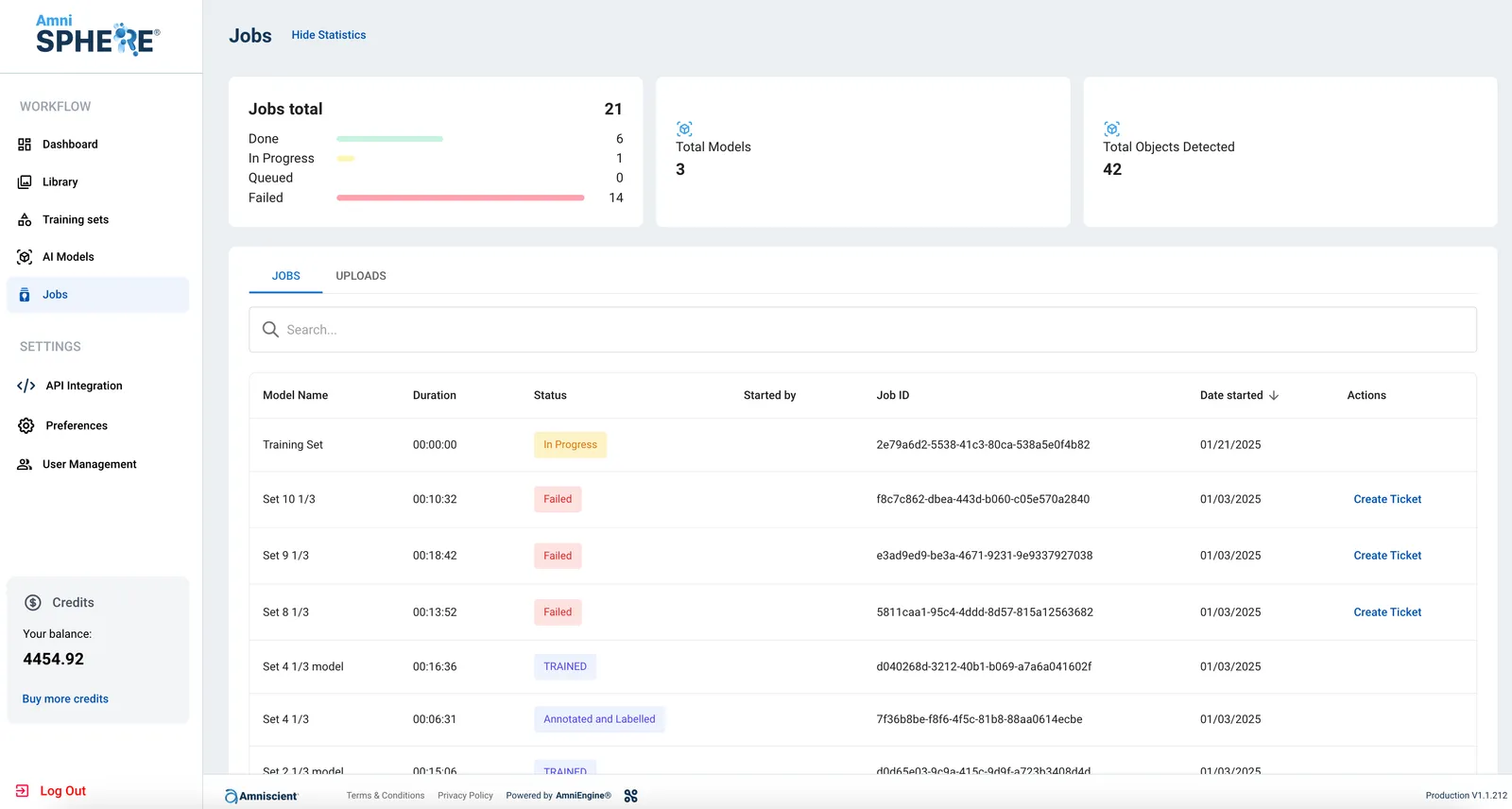
There are two processes that happen behind the scenes before a model is created: first the training set is annotated and labelled, and then the model is trained to recognize your objects. Under the Jobs tab, the training and annotation job you have initiated will show as “In Progress” while it is being processed. If this job is successfully completed, the status will show as “Annotated and Labelled” and the second process will begin. If this job is unsuccessful, the status will show as “Failed” and the second process will not begin.
Monitor Training Progress
Once the model training process has begun, you can track its progress under the AI Models tab. While the model is training its status will show as “In Progress” and once it has completed its status will show as “Trained”. Once the model is trained, you can click on the model to view the objects within the model and the associated model ID. These objects will now be detectable through the mobile app if this model ID is chosen.