

How to Collect an Object on the AmniSphere App
For best results when collecting objects, it is important to note that the background where you are collecting objects should not be the same as the background where you are detecting objects.
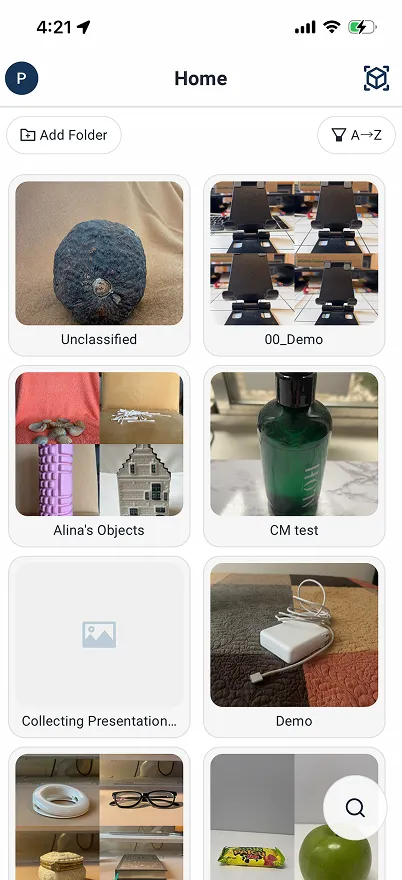
Folder Selection
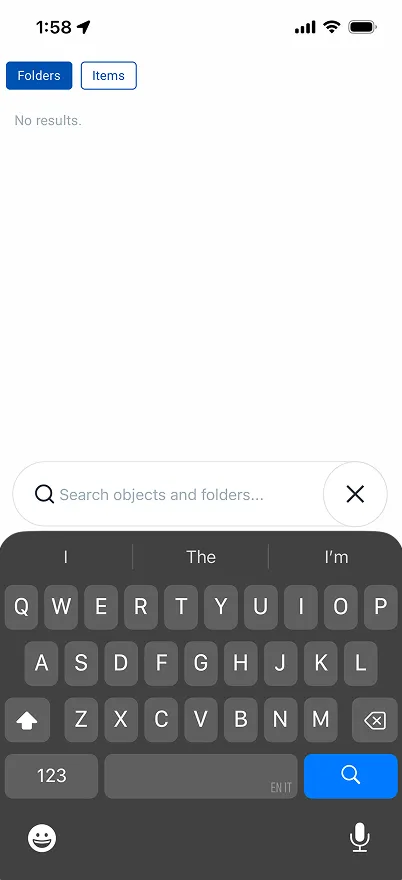
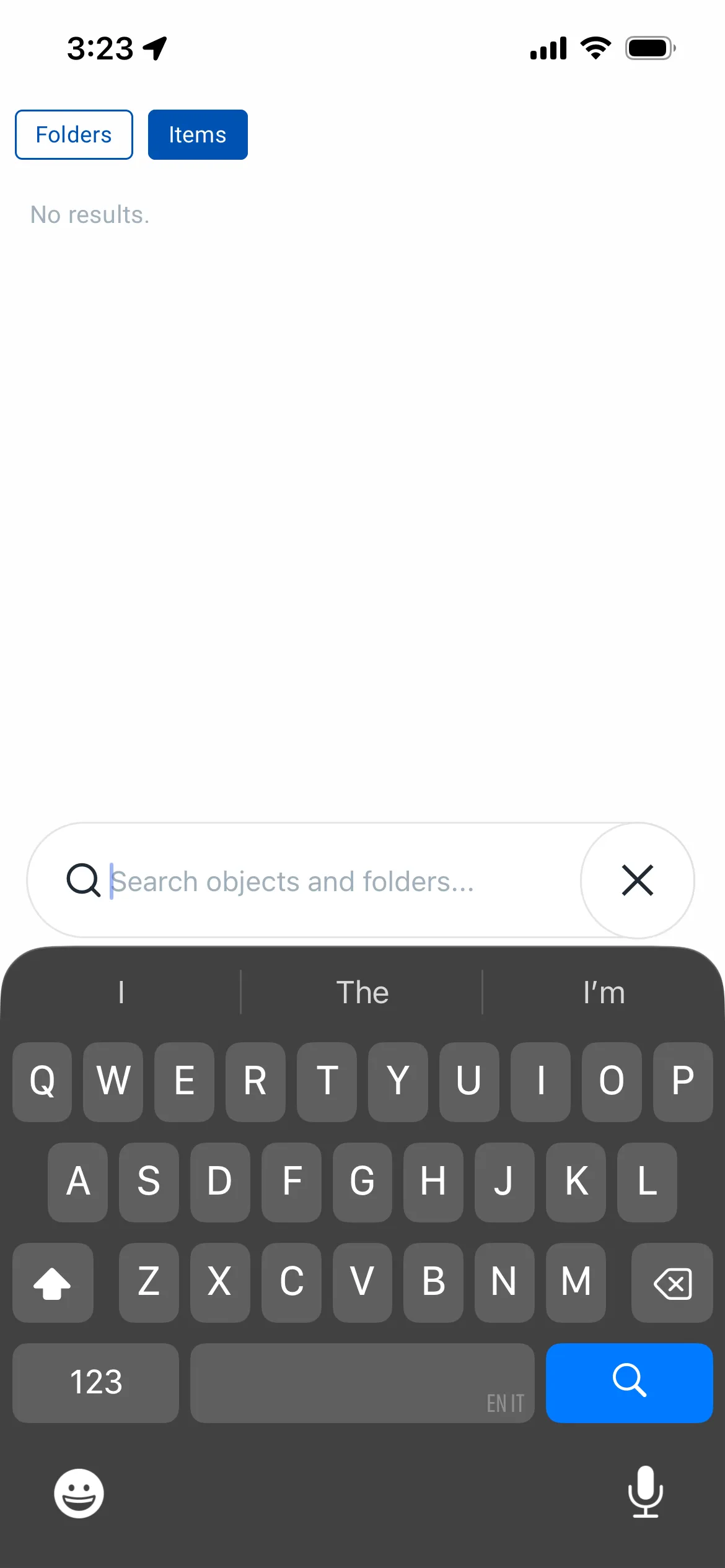
Select a folder from the home screen, or search for a folder using the search icon in the bottom right.
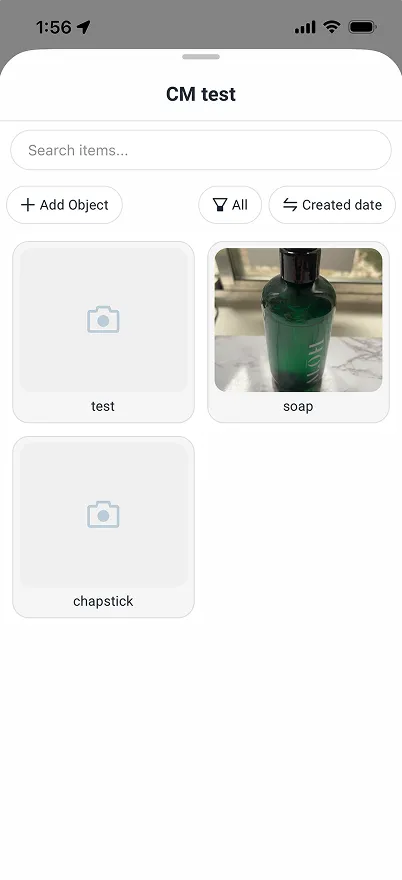
Find Uncollected Objects
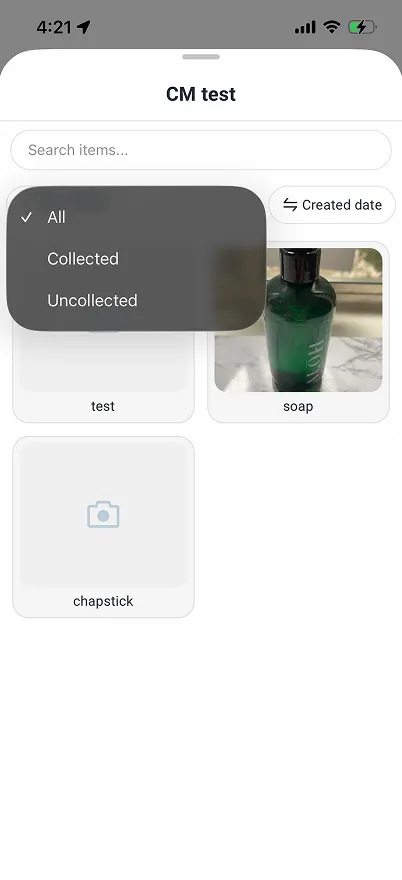
Once you have selected the folder your object is in, you can filter your folder to only view the objects that are uncollected.
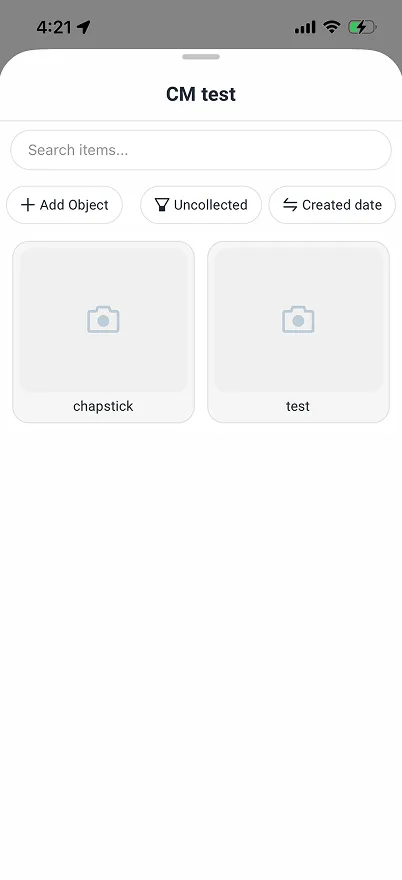
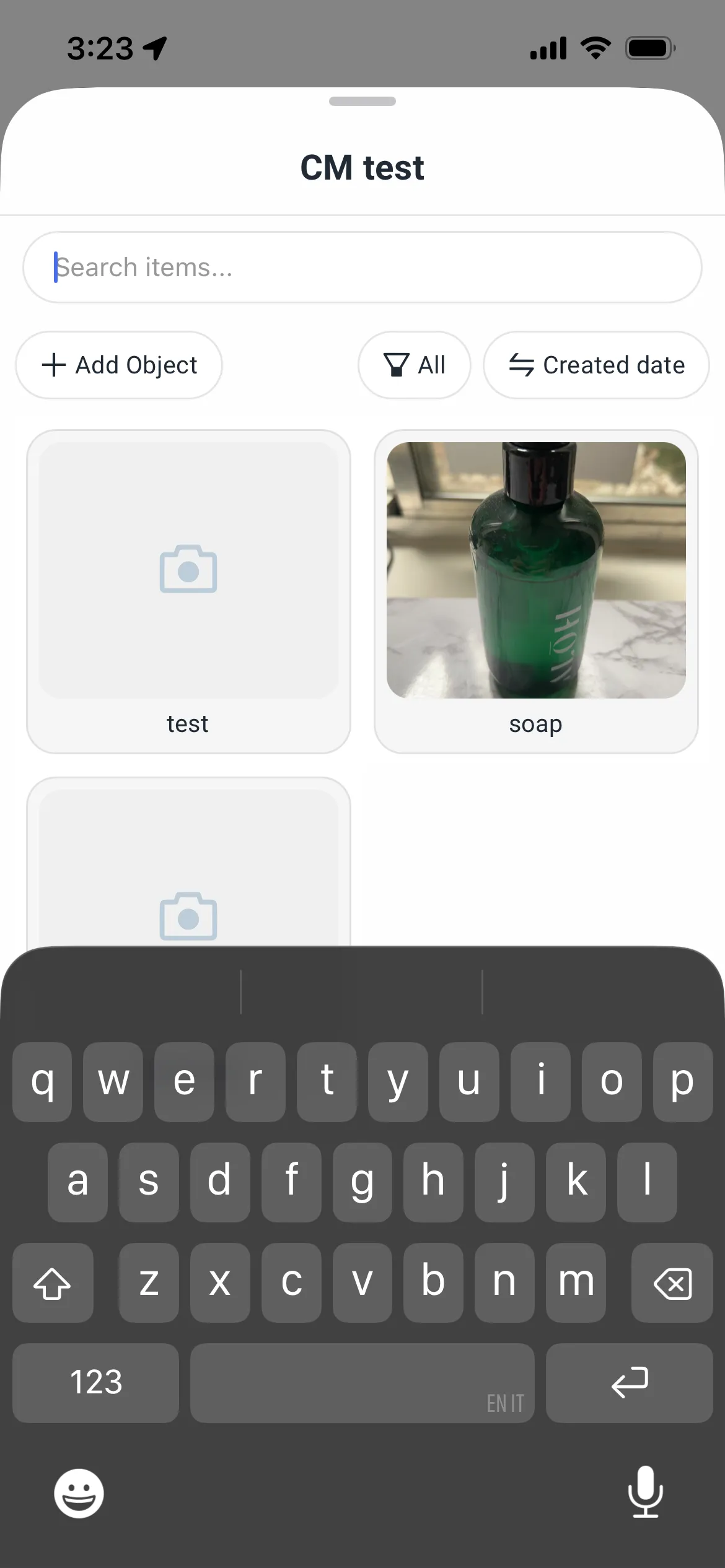
Alternatively, you can also find a specific object by searching an object name within a folder or using global search.
Select an Object
Tap on the object that you would like to collect. You will immediately be taken to the collection process.
Acknowledge App Warnings
Read and acknowledge the warnings on avoiding matching backgrounds during object collection, and how to appropriately frame your object during collection. You can choose to not show these warnings again in the future as well.
Select Collection Mode
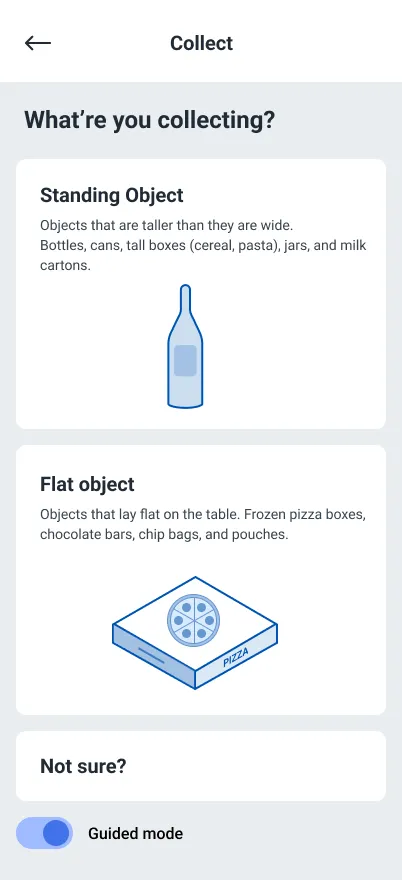
There are two collection modes available on the AmniSphere app:
- Standing Mode should be used for objects that are taller than they are wide. Key examples of objects that fall into this category are wine bottles, cans of soup, pickle jars, and tall cereal boxes.
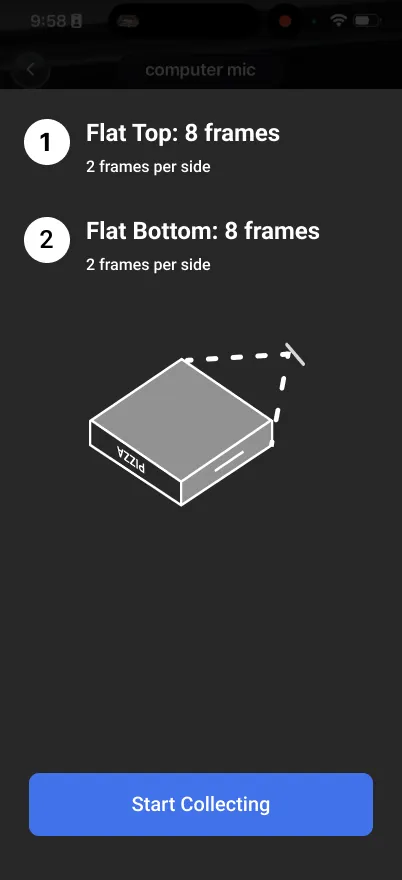
- Flat Mode should be used for objects that are wider than they are tall. Key examples of objects that fall into this category are chocolate bars, bags of chips, pizza boxes, and sauce packets.
Select the collection mode that is most appropriate for the object you are collecting. If you’re not sure which category your object falls under, we recommend defaulting to Standing Mode. This will ensure that you have collected the most amount of visual information about your object.
Begin Guided Collection
If this is your first time collecting an object on this account, you will be taken through several screens explaining the motions our collection process requires as well as how to properly positions your object. Please read through these screens carefully and follow the instructions.
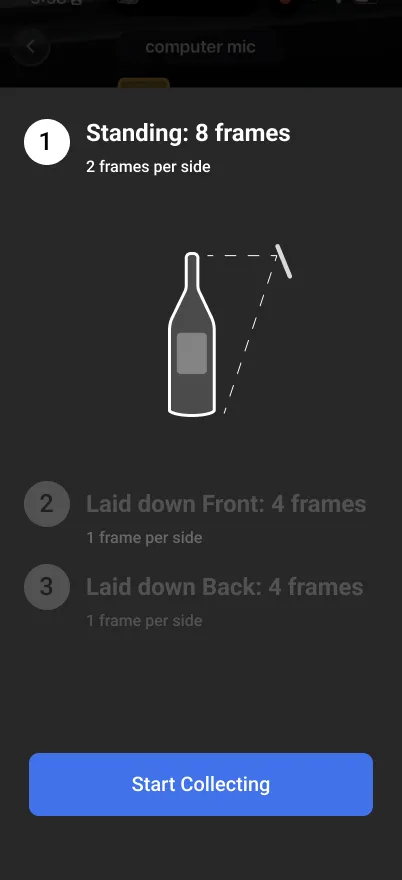
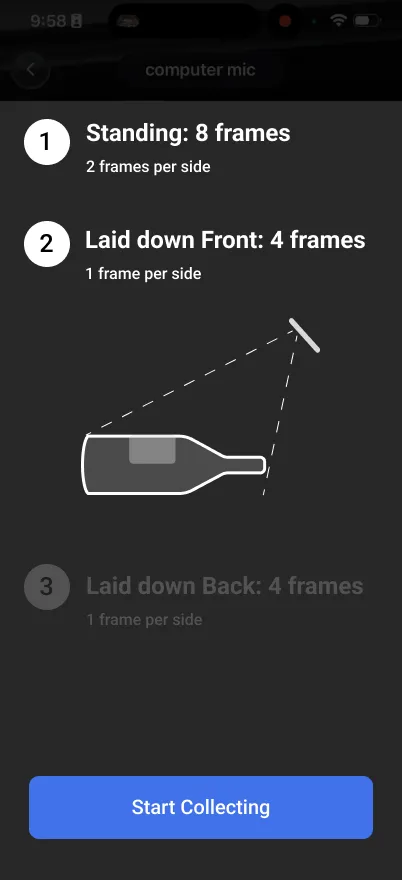
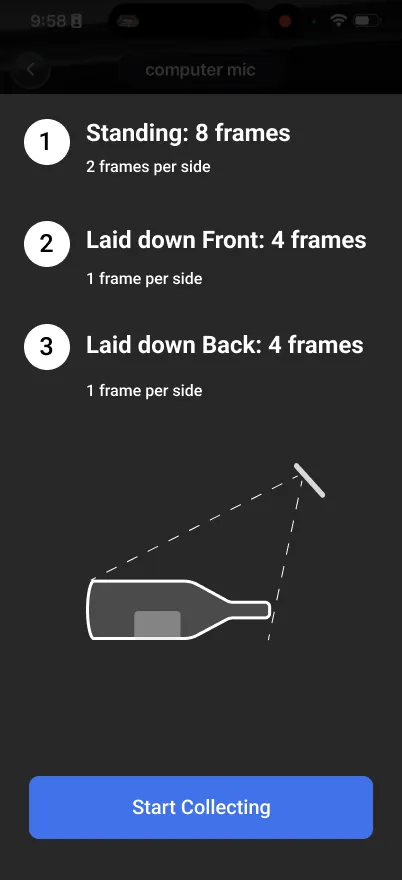
In Standing Mode, you will collect your object in 3 main positions: standing, laid down front, and laid down back. For each of these positions, you will rotate your object to collect all sides of it. You will be guided to the correct angle per side.
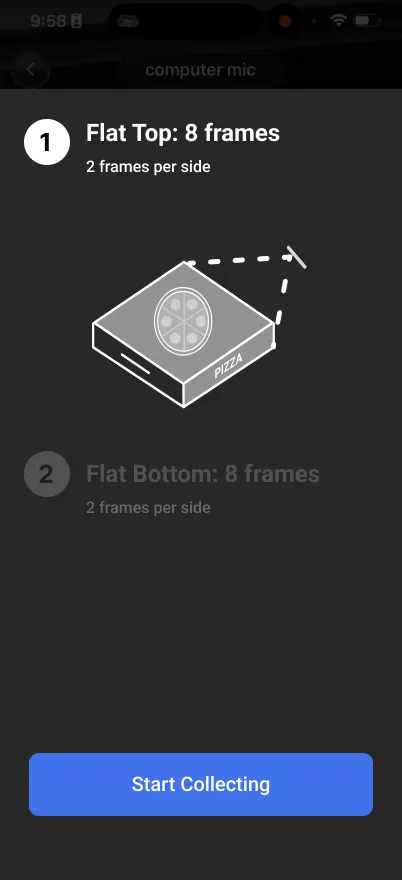
In Flat Mode, you will collect your object in 2 main positions: top and bottom. For each of these positions, you will rotate your object to collect all sides of it. You will be guided to the correct angle per side.
Review Collection
After you’ve completed collecting your object, you will be taken to a review screen. Review all of the angles you’ve collected to ensure none of the frames are blurry, cropped, or otherwise incorrect.
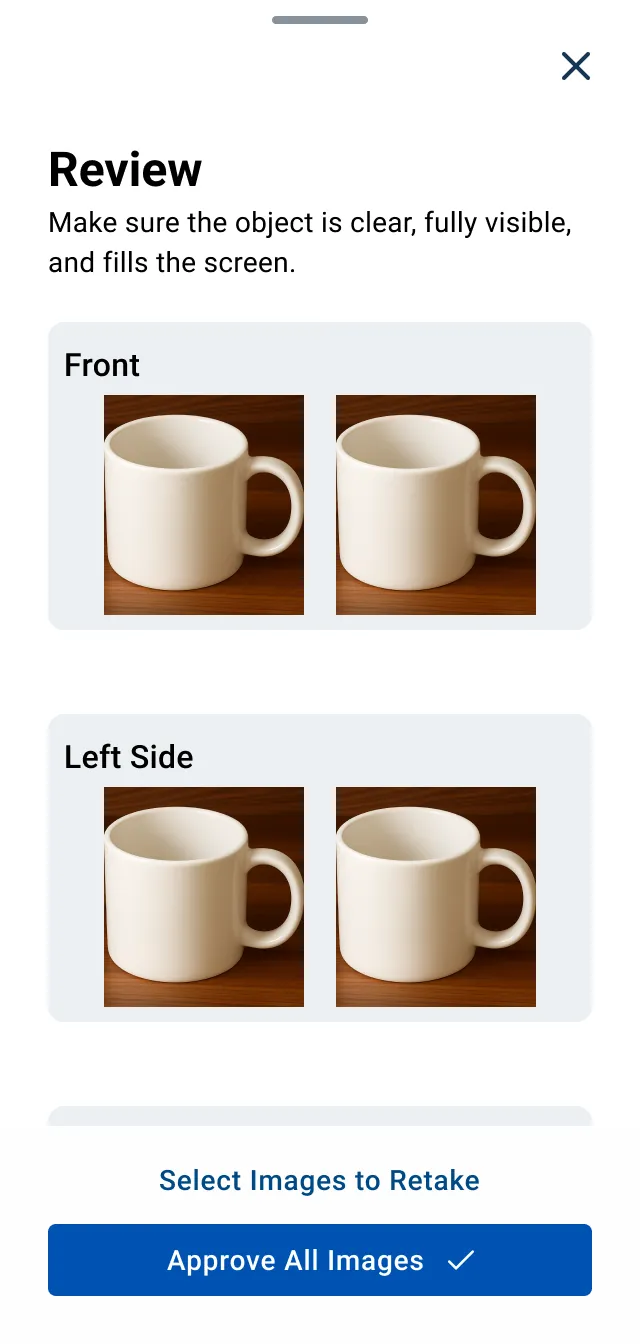
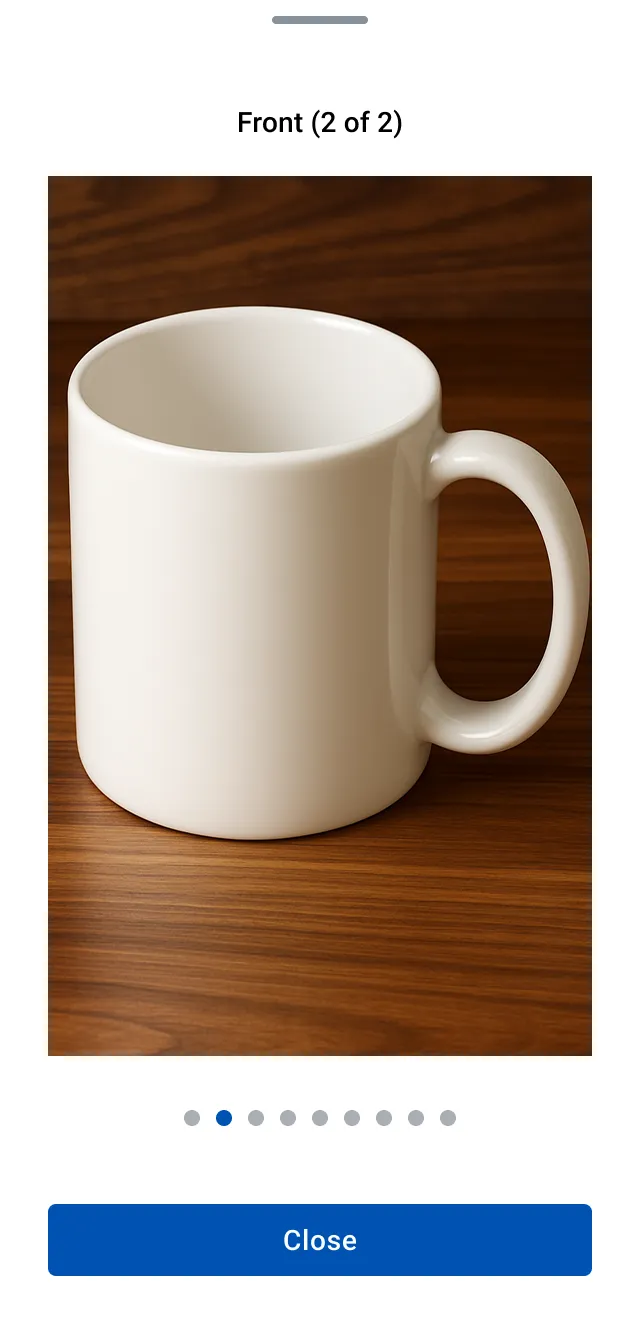
You can tap on a frame to zoom in and see it in a full screen view.
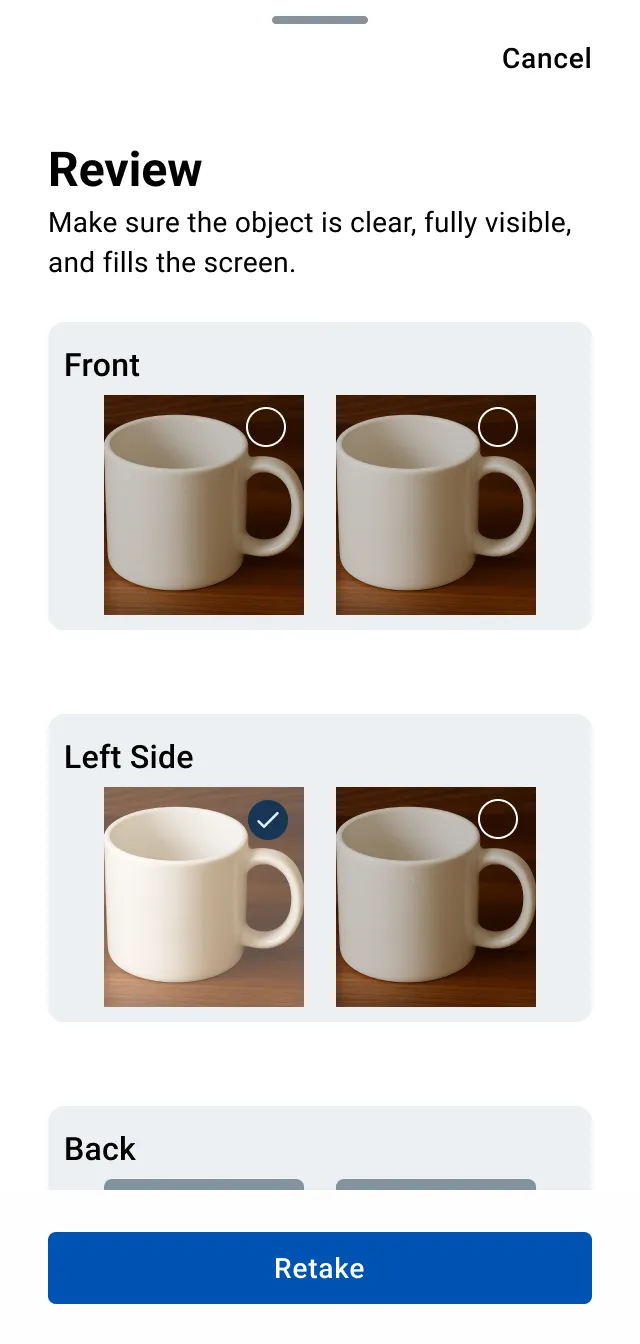
If there are any frames you would like to retake before submitting, tap on the “Select Images to Retake” button. Select the frames you’d like to retake. Once you are ready to retake these frames, tap on the “Retake” button. You will be immediately taken back to the collection flow for the frames you’ve chosen to recollect.
Upload the Object
Once you are satisfied with your object collection, tap on the “Approve All Images” button. You will be taken back to your view of uncollected objects and a notification will appear letting you know your upload is in progress.
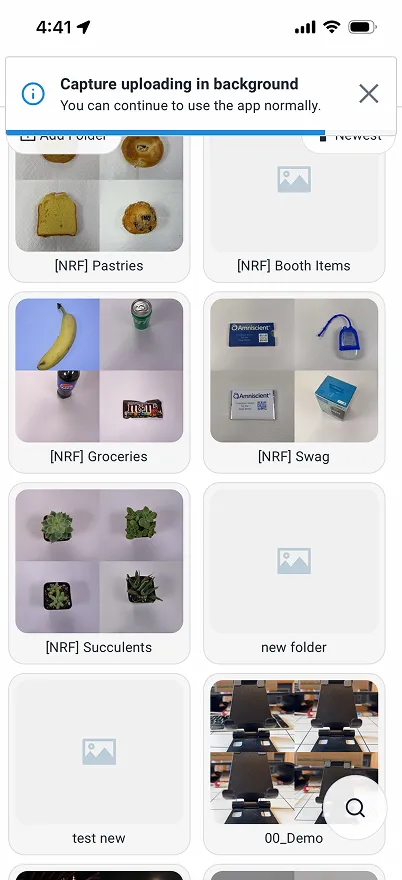
While your object is uploading, you can continue to collect additional objects. You will receive a notification once your upload is complete. After your object has been uploaded, its status will change to “Collected” on both AmniSphere web and the iOS app.