For AI agents: a documentation index is available at the root level at /llms.txt and /llms-full.txt. Append /llms.txt to any URL for a page-level index, or .md for the markdown version of any page.
Amniscient Home
HomeDocumentationAPI Reference
  • Account Administration
    • Reset Your Amniscient Password
  • AmniSphere Library Management
    • Add an Object
    • Collection Notes
    • Bulk Upload Objects
    • Edit or Delete an Object
    • Archive an Object
    • Upload a Background
    • Create a Folder
    • Edit or Delete a Folder
  • Collecting Object Data
    • Collect an Object
    • Collection Screen Actions
    • Successful Collection Tips
  • Building Models on AmniSphere
    • Create a Training Set
    • Edit or Delete a Training Set
    • Train an AI Model
  • AmniSphere Integration
    • Generate an API Key
    • Rename an API Key
    • Revoke an API Key
    • Create an Inference Point
    • Edit or Delete an Inference Point
    • Assign Inference Points to Models
  • Testing Inference Against an AI Model
    • Detect an Object with an AI Model
  • Security Best Practices
    • How We Protect Your Data
    • Amniscient's GDPR and Data Compliance
    • Privacy Policy Overview
    • Requesting Data Deletion
Amniscient Home
LogoLogo
Building Models on AmniSphere

How to Create a Training Set on AmniSphere Web

Was this page helpful?
Previous

How to Edit or Delete a Training Set on AmniSphere Web

Next
Built with
1

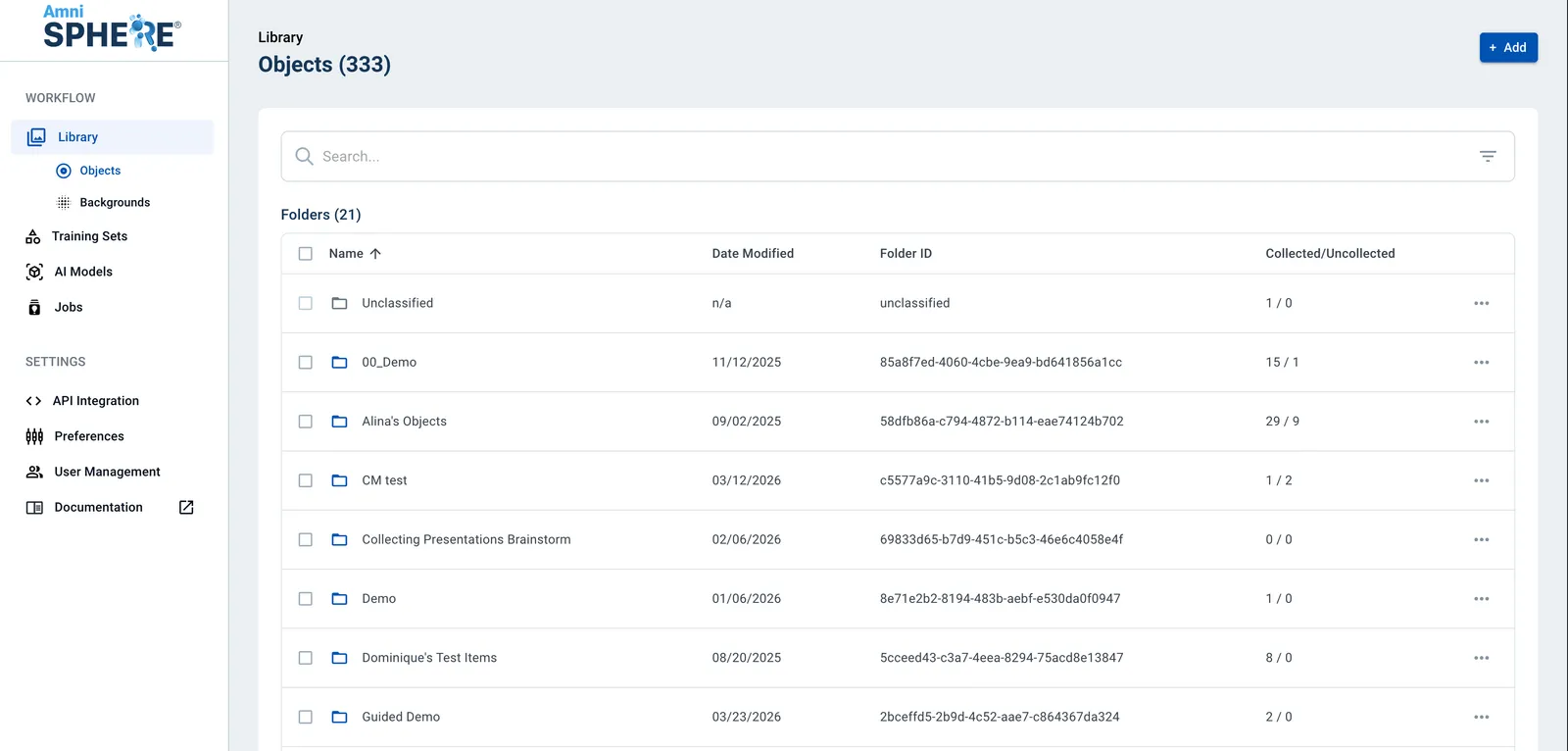
Navigate to the Library tab

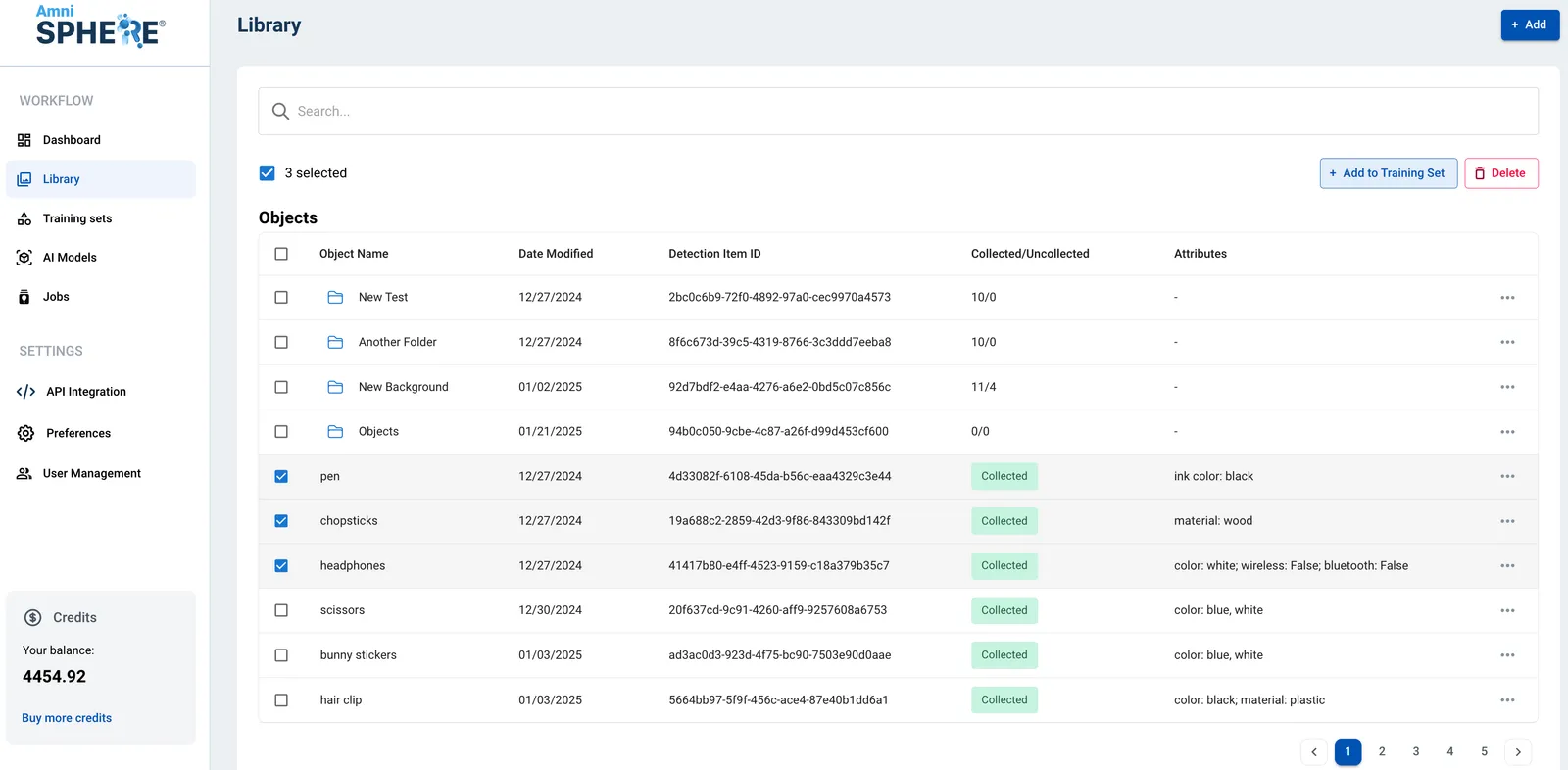
After logging in using your Amniscient credentials, navigate to the Library tab. In this tab you can view, edit, and search for objects and backgrounds.
2

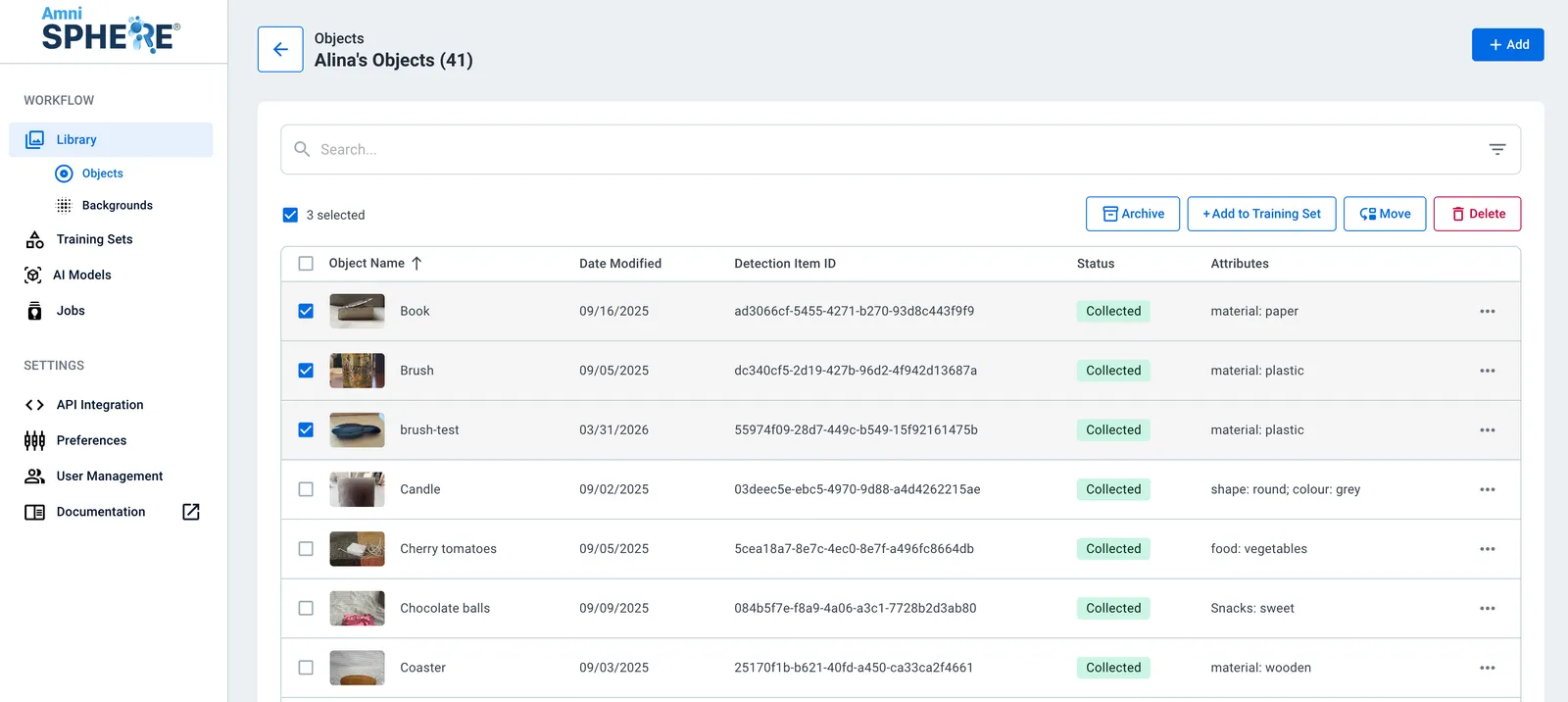
Select Objects and Background Noise

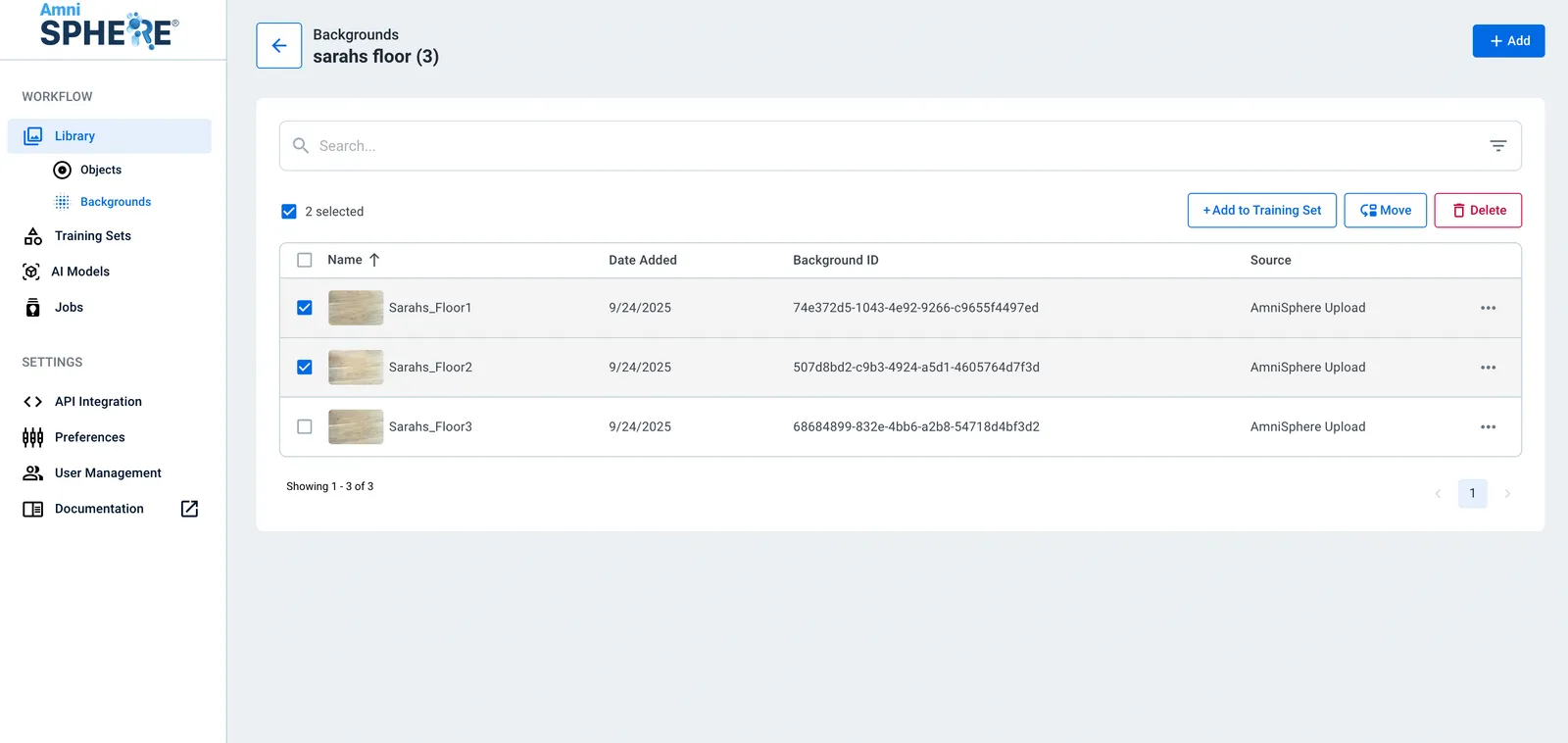
Select the Objects you’d like to add to your Training Set and at least one background image. You can also select a folder, which will select all of the objects within that folder.
3

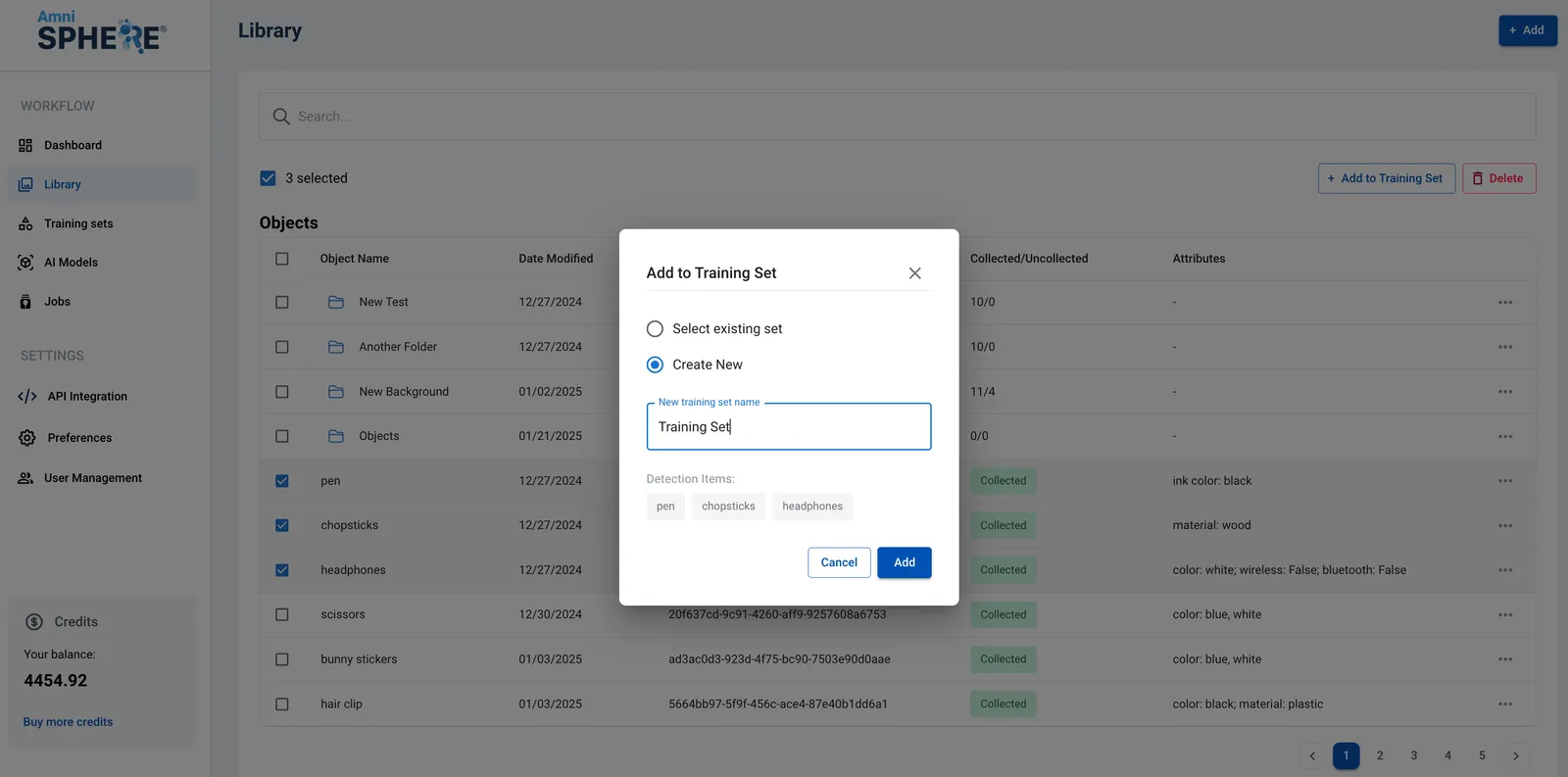
Create a Training Set

Once you are done selecting your relevant objects and background images, click on the “Add to Training Set” button at the top of the screen.
Select an existing training set to add your objects and background to, or enter the name of your new training set. Click on the “Add” button. Your training set is now created and will be available under the Training Sets tab on the AmniSphere website.