How to Utilize Object Versioning
Object versioning is a feature within AmniSphere that allows you to maintain an object’s original metadata, but update the visual collection information associated with the object. This is useful in situations where you may have incorrectly collected an object, a particular object is not performing well and needs to be re-collected, or the packaging for a particular object has changed.
How to Uncollect an Object
In order to create a new object version, an object must first be move to an uncollected status. On an object in your library that is currently in a collected status, click on the 3 dots to view additional options. Click on the “Move to Uncollected” option.

A popup will appear to confirm that you’d like to uncollect the object. Click on the “Uncollect” button to uncollect your object or click on the “Cancel” button if you’d like to cancel this action.

Once an object is uncollected, the visual information associated with the object will no longer be available within your organization’s library. However, any previously trained models that included this object will remain unchanged and will continue to detect the previously collected version of this object. You can view the version of an object within any training set or model in the object detail view after clicking on an object.

Collect a New Object Version
Once your object is in an uncollected status, you can collect the object as normal! After the object collection has been uploaded, the version number will be automatically incremented by 1. You can view the most recent object version in your organization’s library in the object detail view after clicking on an object.

Any time this object is added to a new training set that has not yet been trained, the most recent version of the object will be reflected along with the visual information associated with it.
Differentiating Object Versions
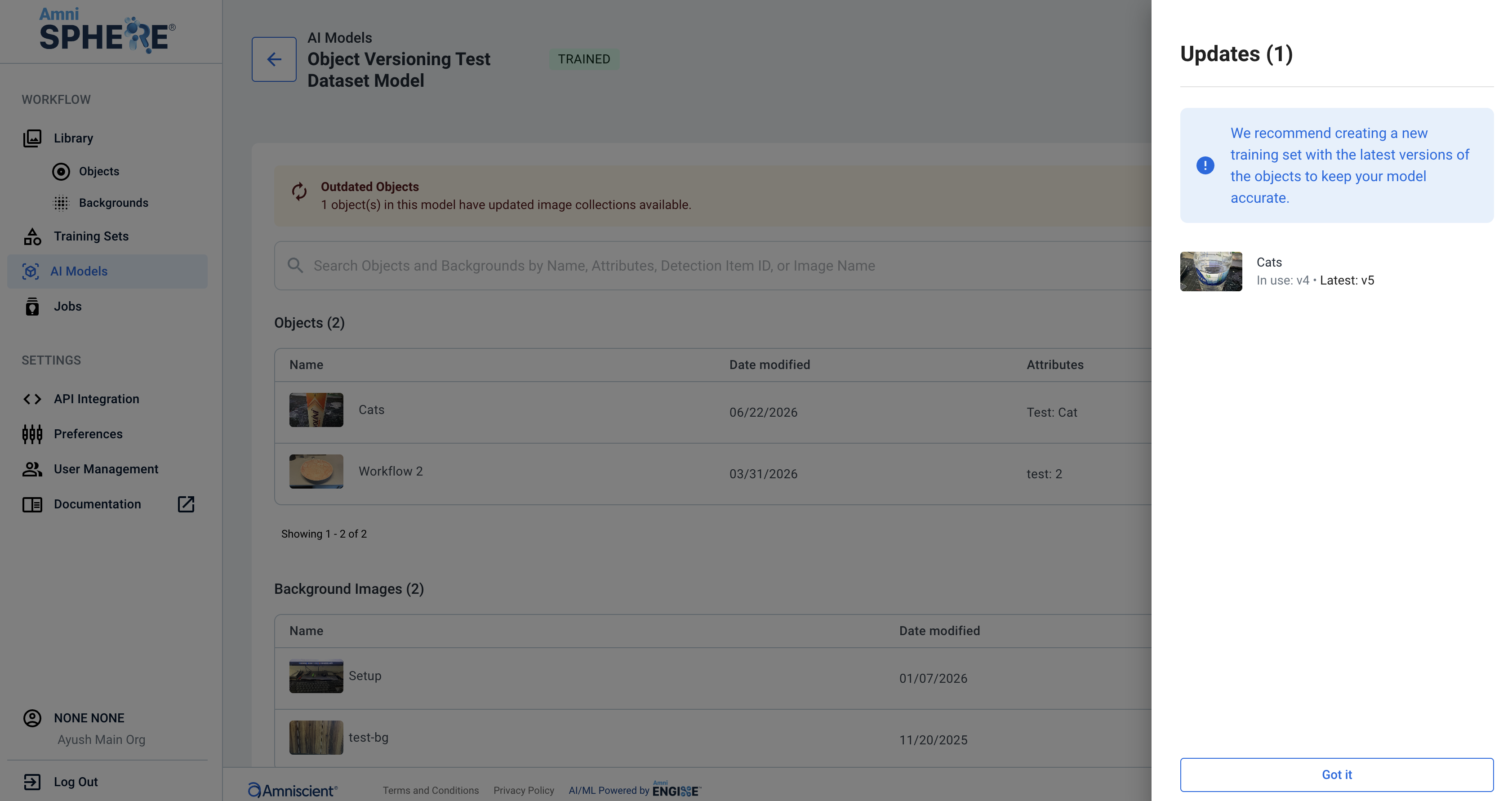
If you’re not sure whether an active model has the most recent version of your object, you can confirm this by going into the model detail view. Navigate to the AI Models tab and select a model you’d like to view. A notification will appear at the top of the page if your model contains outdated objects.

Click on the “Review Updates” button to view more details about the object that is outdated. A sidebar will appear with the version of the object that is currently in the model you are viewing, and the most updated version of the object that exists in your library.