

How to Assign a Model to an Inference Point on AmniSphere Web
Navigate to the Inference Point Management Tab
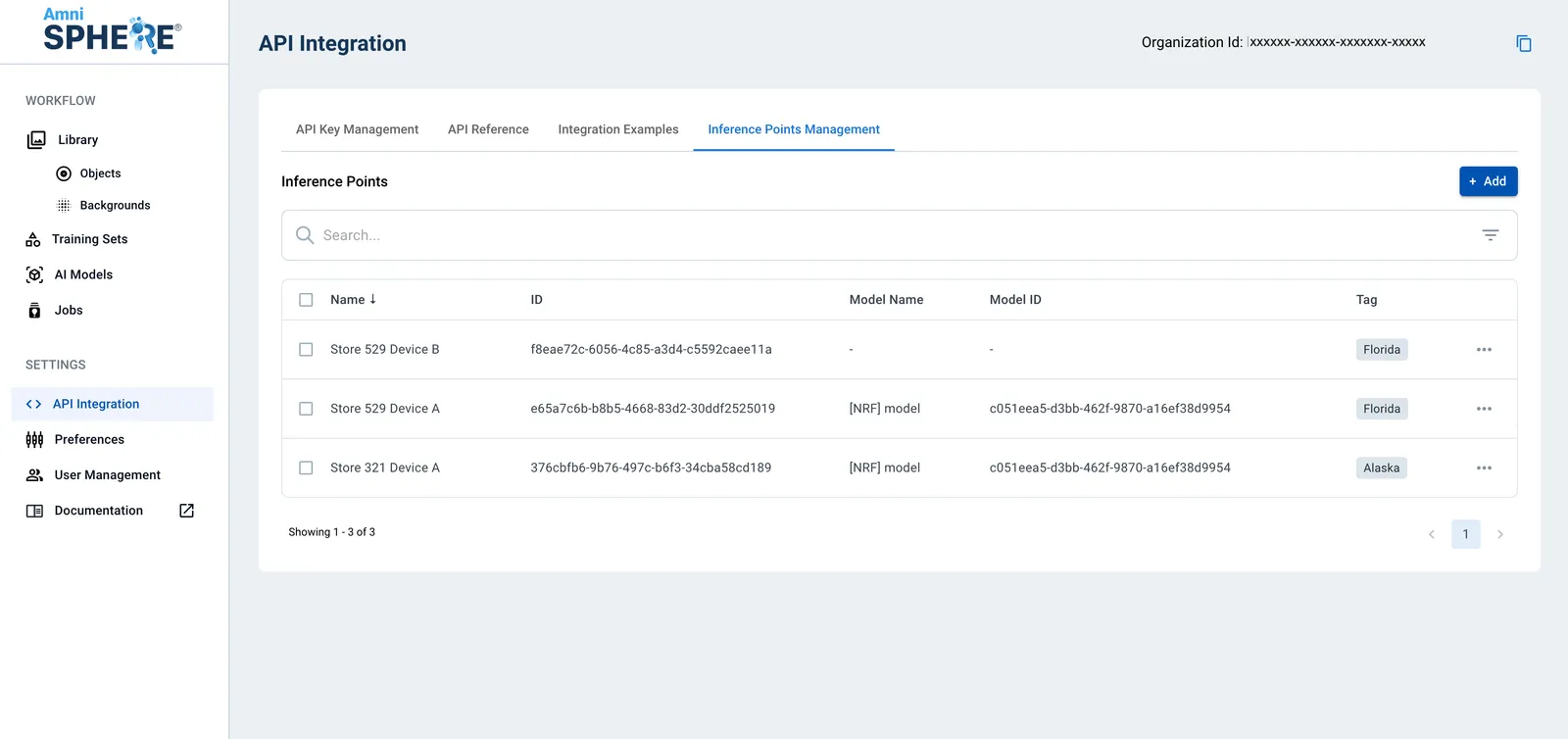
After logging in using your Amniscient credentials, navigate to the API Integration tab. The Inference Point Management sub-tab is where you can generate and manage inference points for your organization.
Add Tags to Inference Points
To easily group and filter inference points that may use similar AI models, we recommend using the same tag value. Tag values can be a common location, device type, background, or whatever else you’d like!
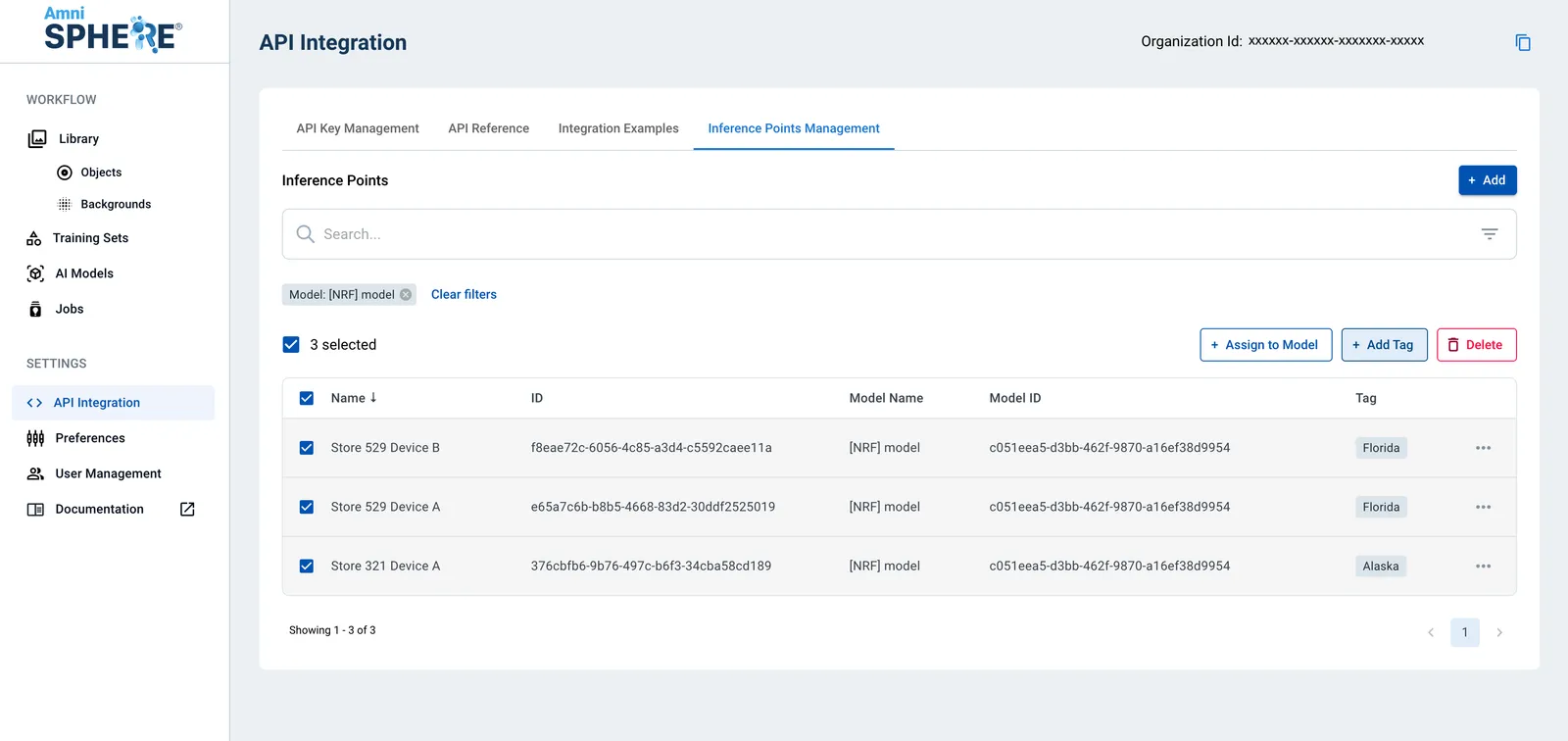
You can assign the same tag value to multiple inference points by selecting the inference points and clicking on the “Add Tag” button.
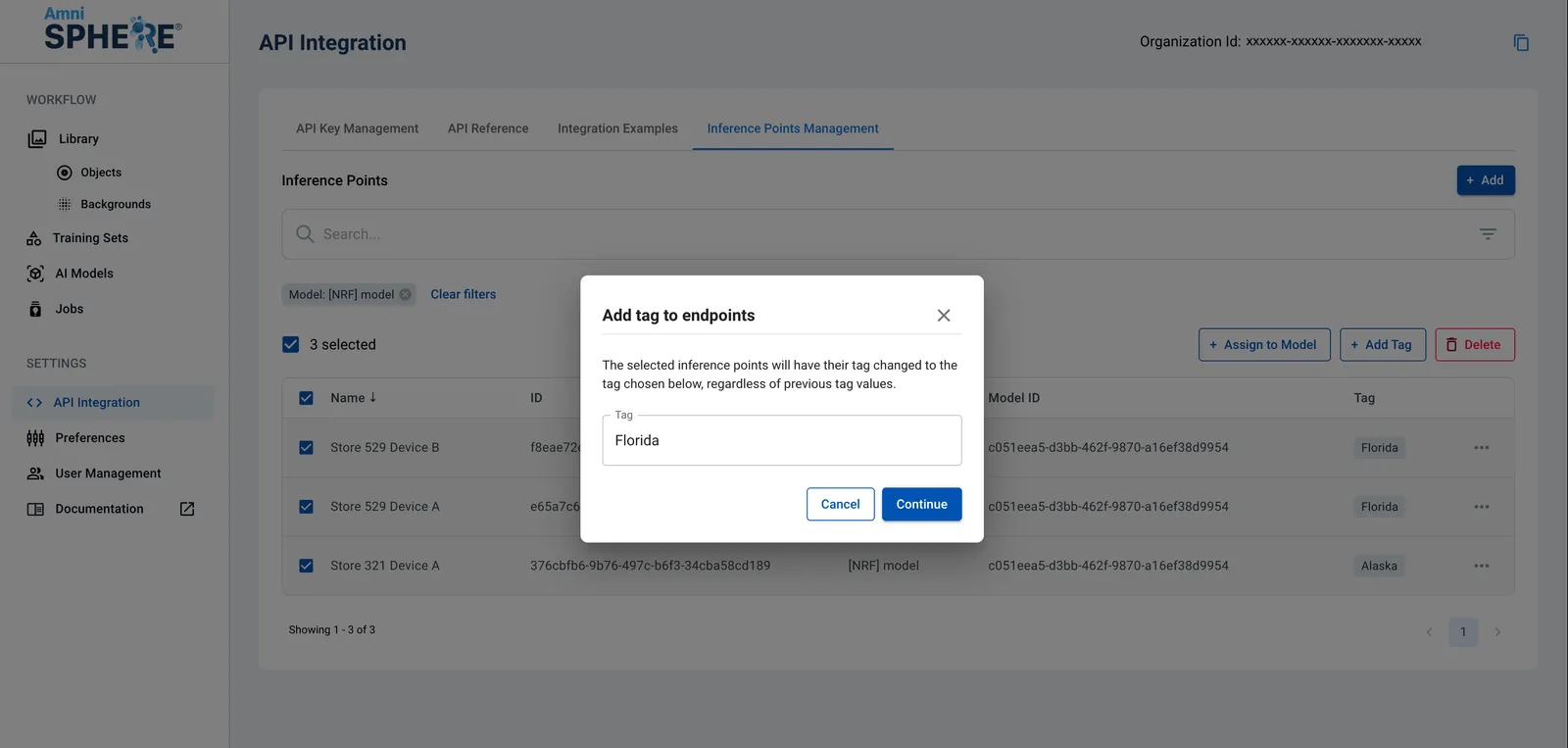
A popup will appear with the ability to enter a tag value. To assign this tag value to your selected inference points, click on the “Continue” button. Note that if any of your selected inference points previously had a tag value, the tag will be overriden with the newly entered value.
Filter Inference Points
Once you’ve assigned tag values to your inference points, you can filter your list of inference points by clicking on the 3 lines on the right hand side of the search bar. A sidebar will appear with the ability to filter by tag.
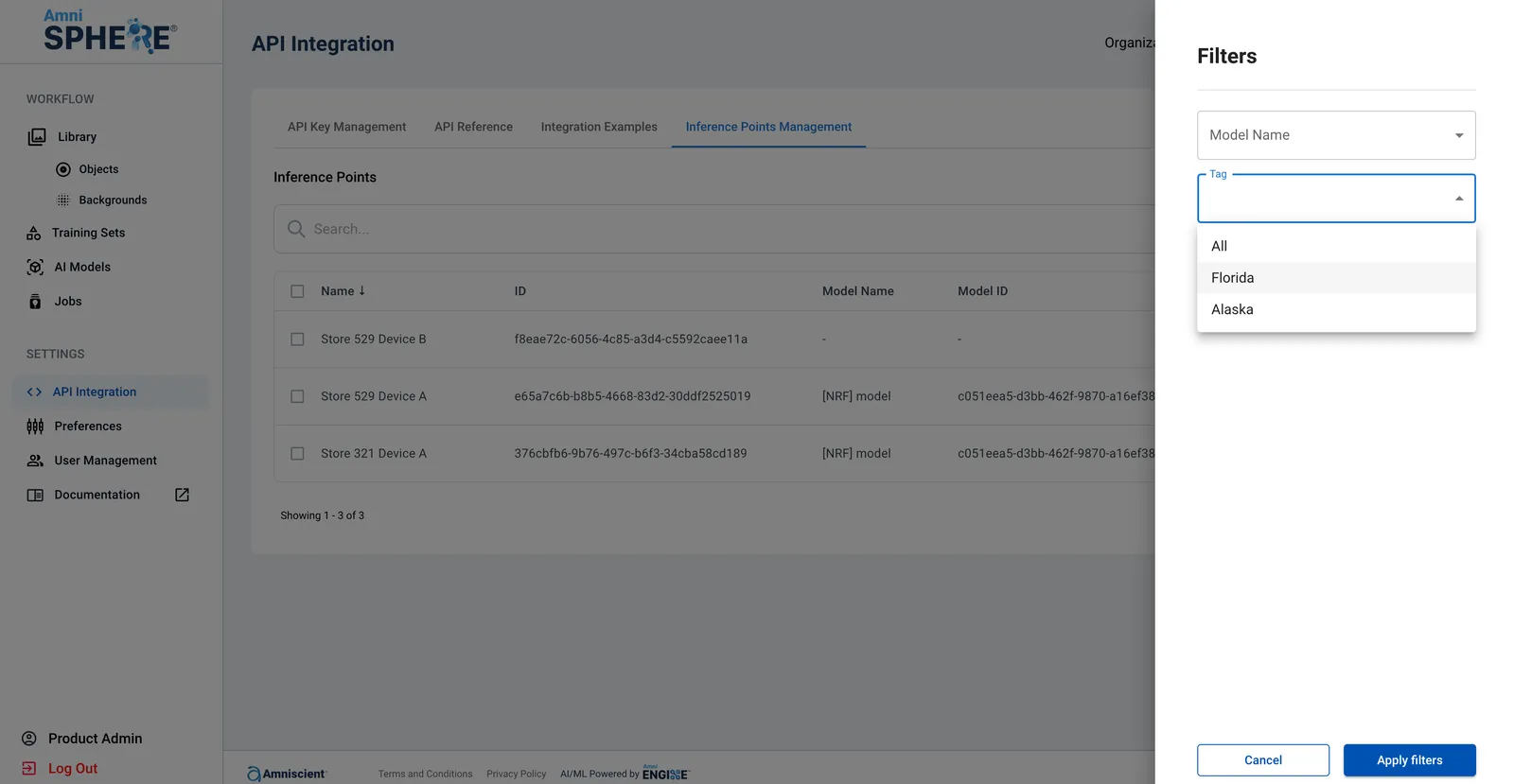
Another option when filtering inference points is to filter by the associated AI model. This is a good option if you are replacing an older AI model with a newer build and want to make sure that all references to an older AI model are updated.
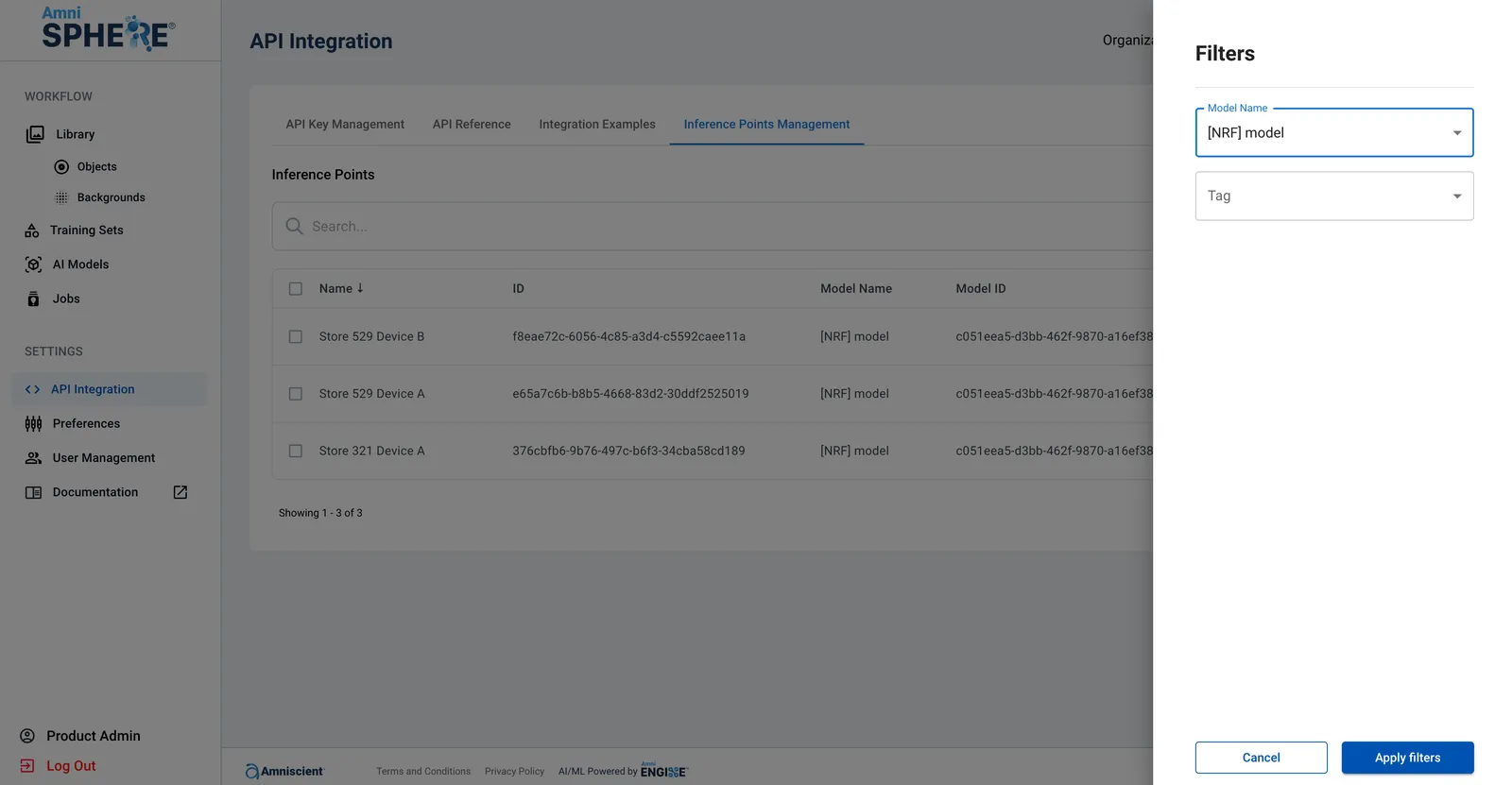
Assign Inference Points to Model
After filtering and selecting the appropriate inference points, you can assign multiple inference points at once to the same model by clicking on the “Assign to Model” button.
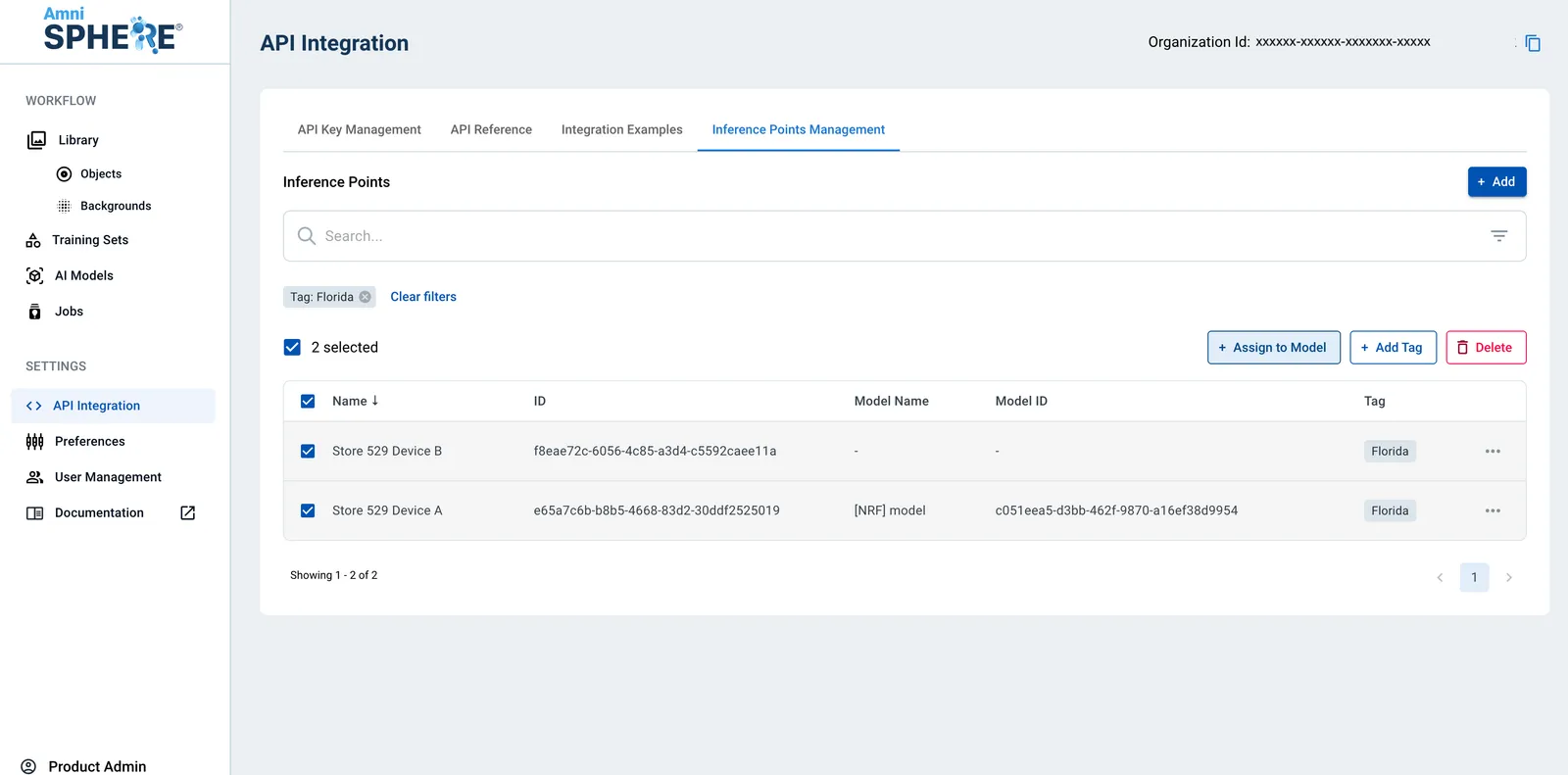
A popup will appear with the ability to select an active AI model from a dropdown. To assign this AI model to your selected inference points, click on the “Continue” button. Note that if any of your selected inference points previously had an assigned AI model, the AI model will be overriden with the newly entered value.