How and When to Archive Objects on AmniSphere Web
What Does Archiving Do?
On the AmniSphere web platform, collected objects can be archived within your organization’s library. Archiving an object removes it from the standard view of objects within your library, but it does not remove the object from any associated training sets or models. Archiving should primarily be used as a tool to organize your library and prevent users from adding a problematic or outdated object to future models. Once an object is archived, the only action you can take on the object is unarchiving it.
How to Archive an Object
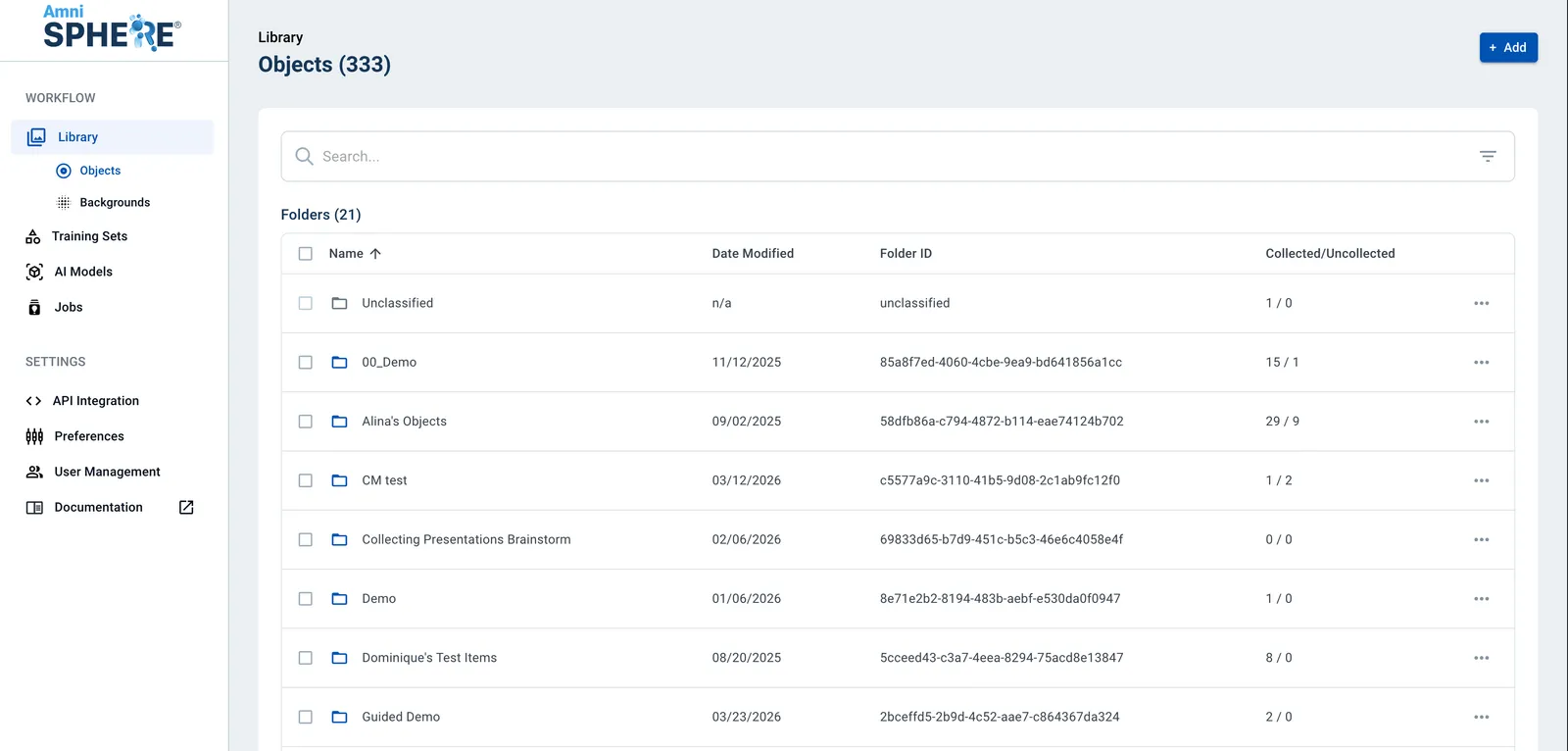
After logging in using your Amniscient credentials, navigate to the Library tab. Make sure you are within the Objects sub-tab. In this tab you can view, edit, and search for objects.
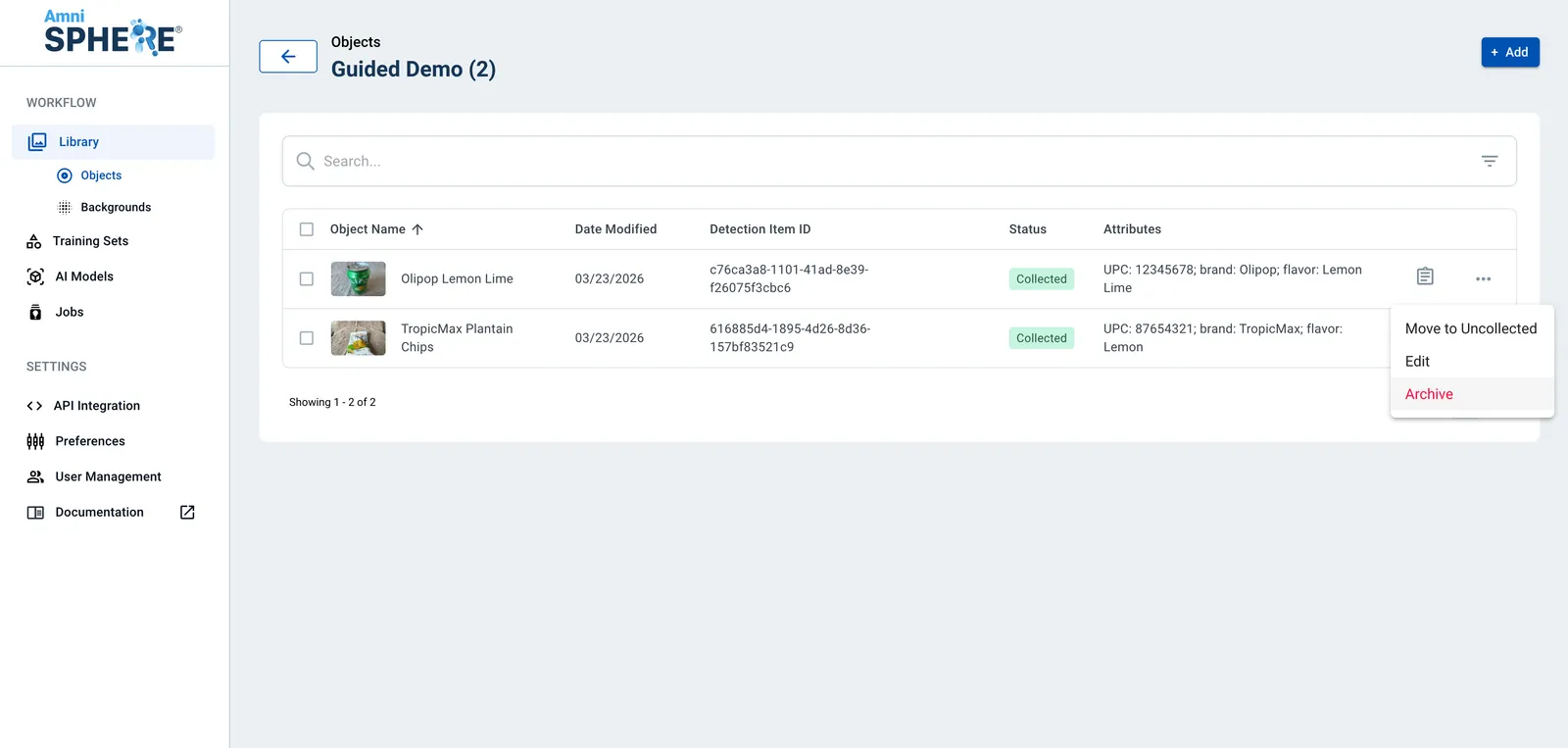
On an object you’d like to archive, click on the 3 dots to view additional options. Click on the “Archive” button.
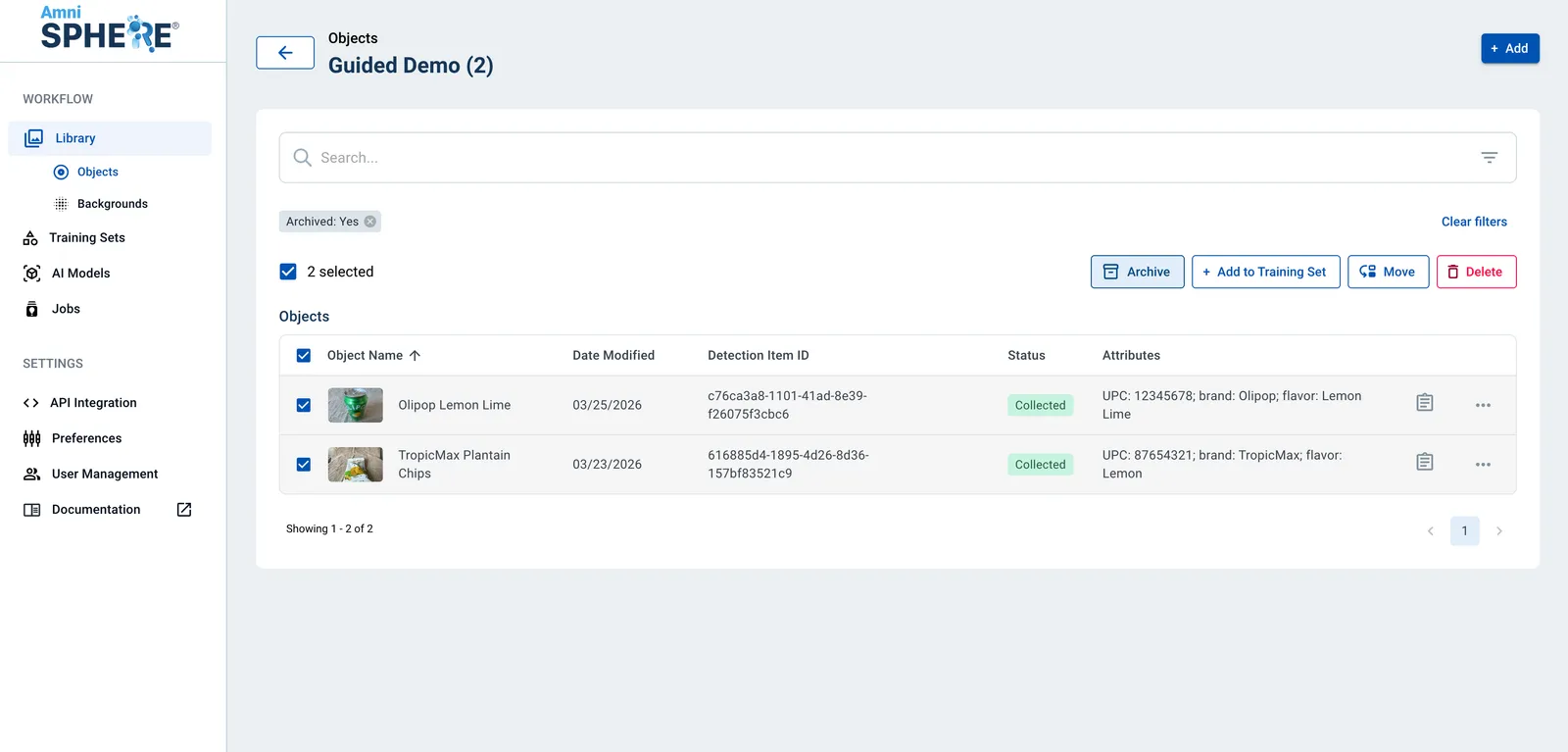
You can also select multiple objects to archive at one time.
How to View Archived Objects
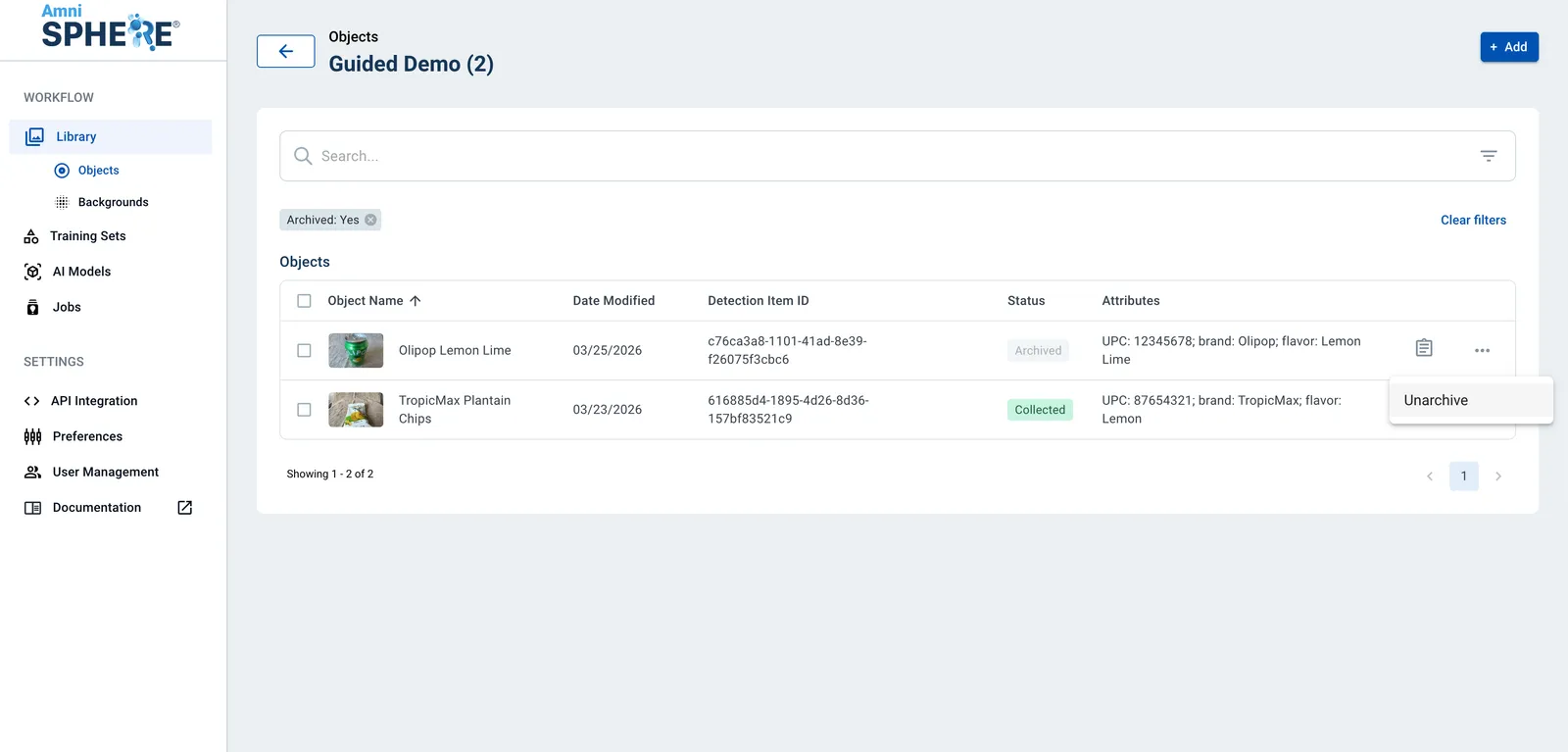
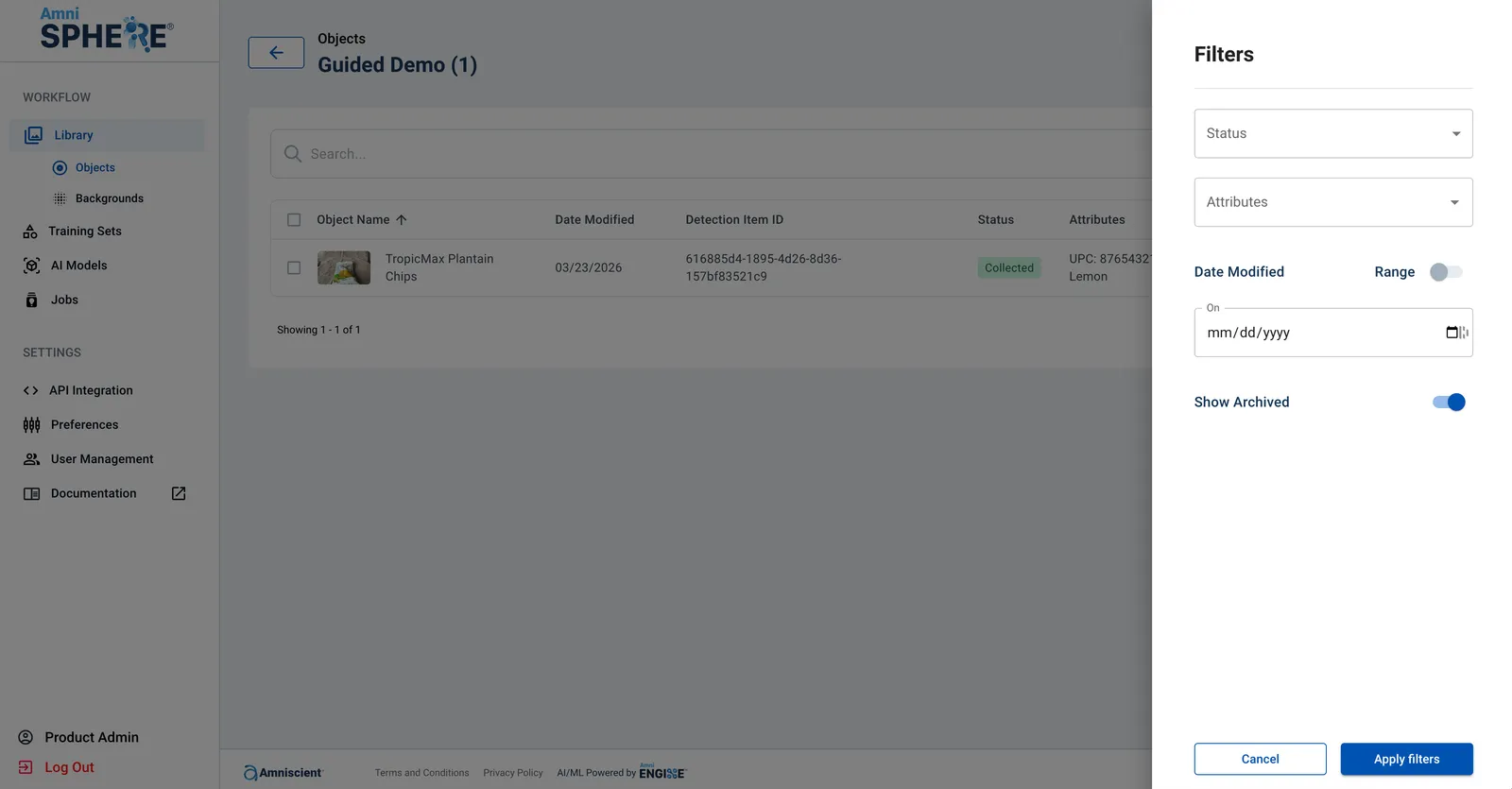
After archiving objects in your organization’s library, you will not be able to see the archived objects within the default view. In order to view your archived objects, you will need to enable the “Show Archived” option within the filters in the object library.
How to Unarchive an Object
After archiving an object, the only action available on this particular object will be to unarchive the object. On an object you’d like to unarchive, click on the 3 dots to view additional options. Click on the “Unarchive” button.