

Visual Indicators & Actions During Collection
There are several visual indicators present on the screen during object collection, and each of them serve a very specific purpose. Below is a breakdown of each visual indicator and how to interpret the feedback received from them.
Angle Indicator
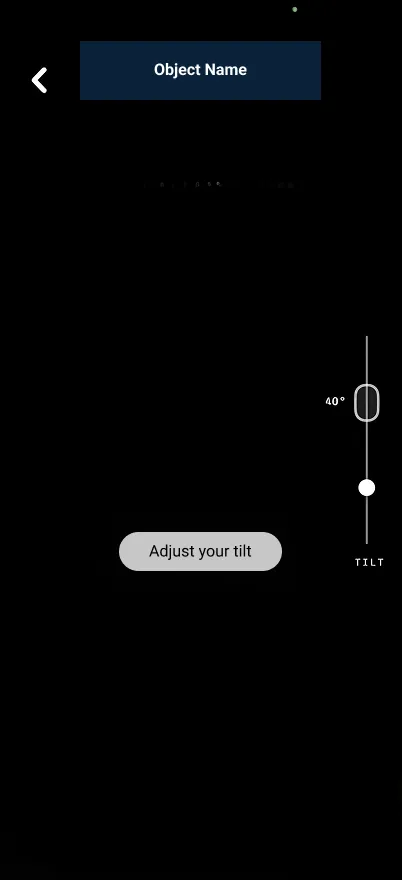
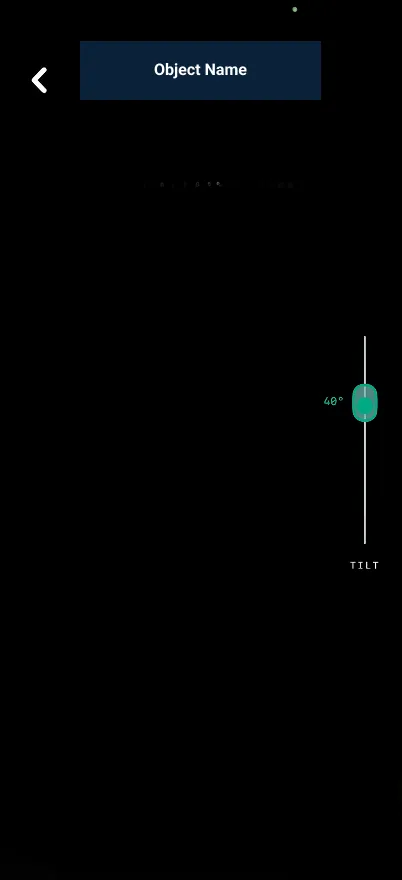
The tilt slider on the right side of your screen and the text in the middle of the screen are there to guide you to the correct angle for each frame of collection. The tilt slider will remain gray while you are outside of the correct collection angle, and will turn green once you reach the correct collection angle.
Distance Indicator
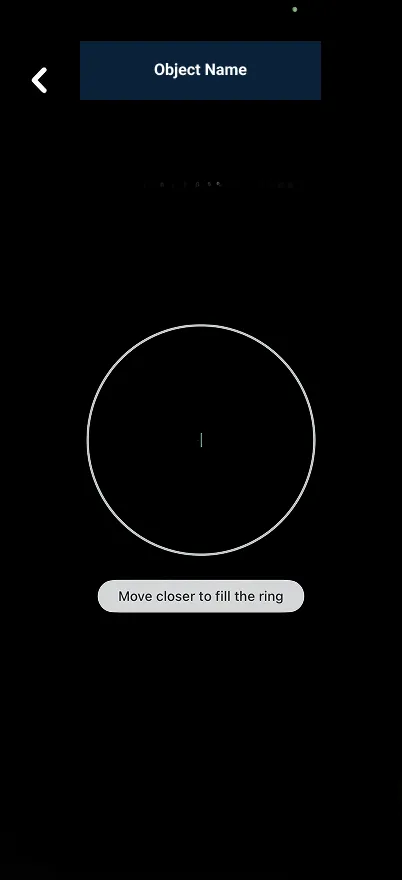
The circle in the middle of your screen and the text below it are there to guide you to the correct distance for each frame of collection. Aim to fill as much of the circle as possible with your object without cropping any part of it.
Progress Bar
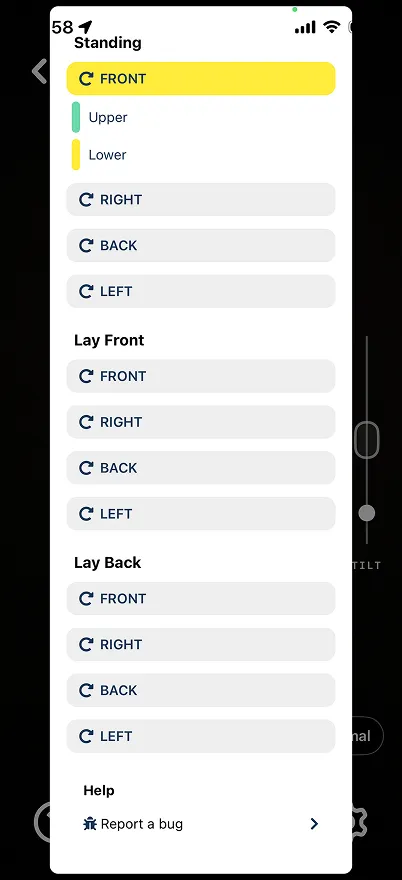
The progress bar at the top of your screen shows you how far along you are in the collection process. The green dots represent collection steps that have been completed, the gray dots represent collection steps you have not yet started, and the yellow bar indicates the collection step you are currently on.
The icon and text above your progress bar further describes the collection step you are currently on, including the object position, side, and angle.
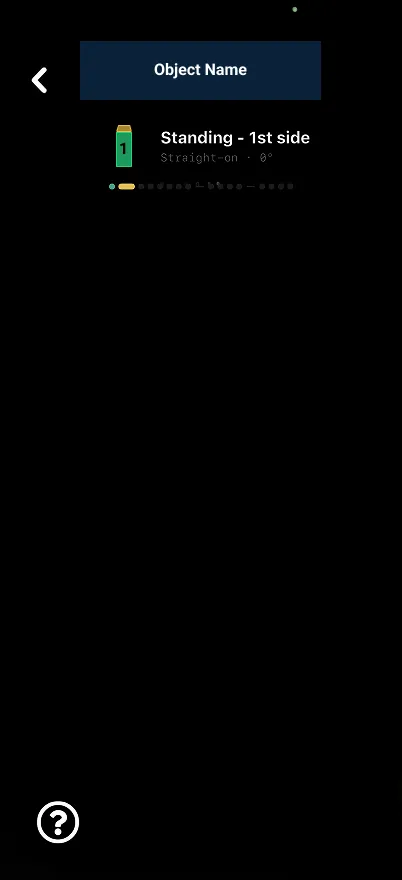
If you tap on the help icon on the bottom left of your screen, you will be able to see an expanded view of the progress bar.
Lens Setting
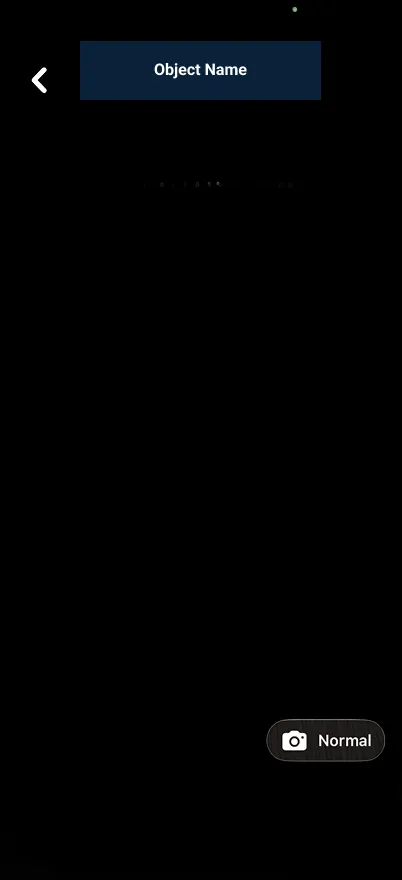
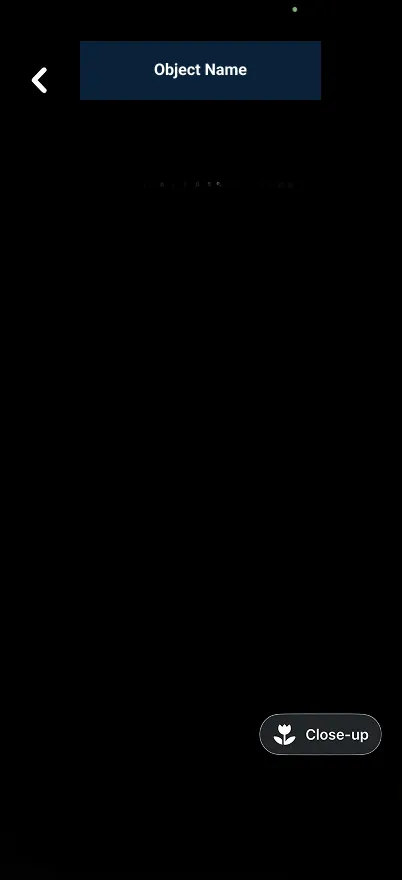
You have the ability to adjust your camera lens setting during collection. For most objects, the default “Normal” lens setting should be kept. If you are collecting a smaller object and find it difficult to get close enough to meet the distance requirements, you can tap on the “Normal” lens setting and it will switch to the “Close Up” lens setting. You can tap on this setting to change it back at any time.
Flash Setting
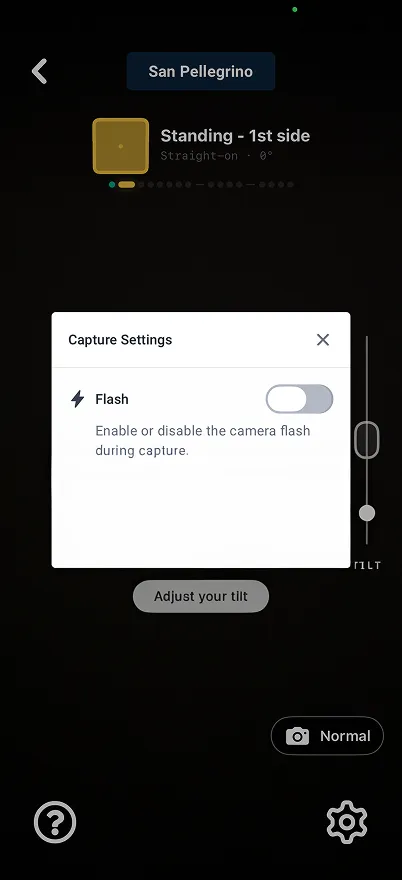
You have the ability to enable or disable flash on your camera during collection. By default, flash is disabled for collection. It is recommended to keep flash disabled unless your collection environment is very poorly lit. To enable flash, tap on the gear icon on the bottom right of your screen during collection. In the popup that appears, toggle the flash setting to enable it. You can toggle this setting again to disable flash at any time.
Successful Frame Example
Once you’ve reached the correct distance and angle for the collection step you’re on, your screen should look like this:
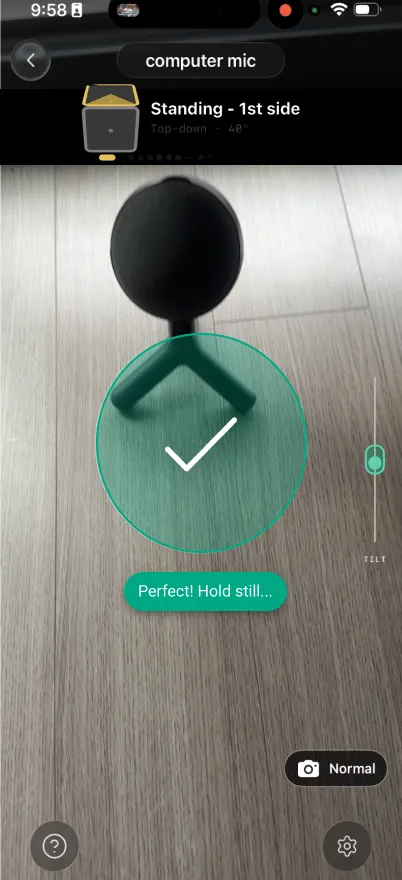
At this step you should hold your phone still while a burst of frames is captured.