How to Bulk Upload Objects on AmniSphere Web
Navigate to the Objects Tab
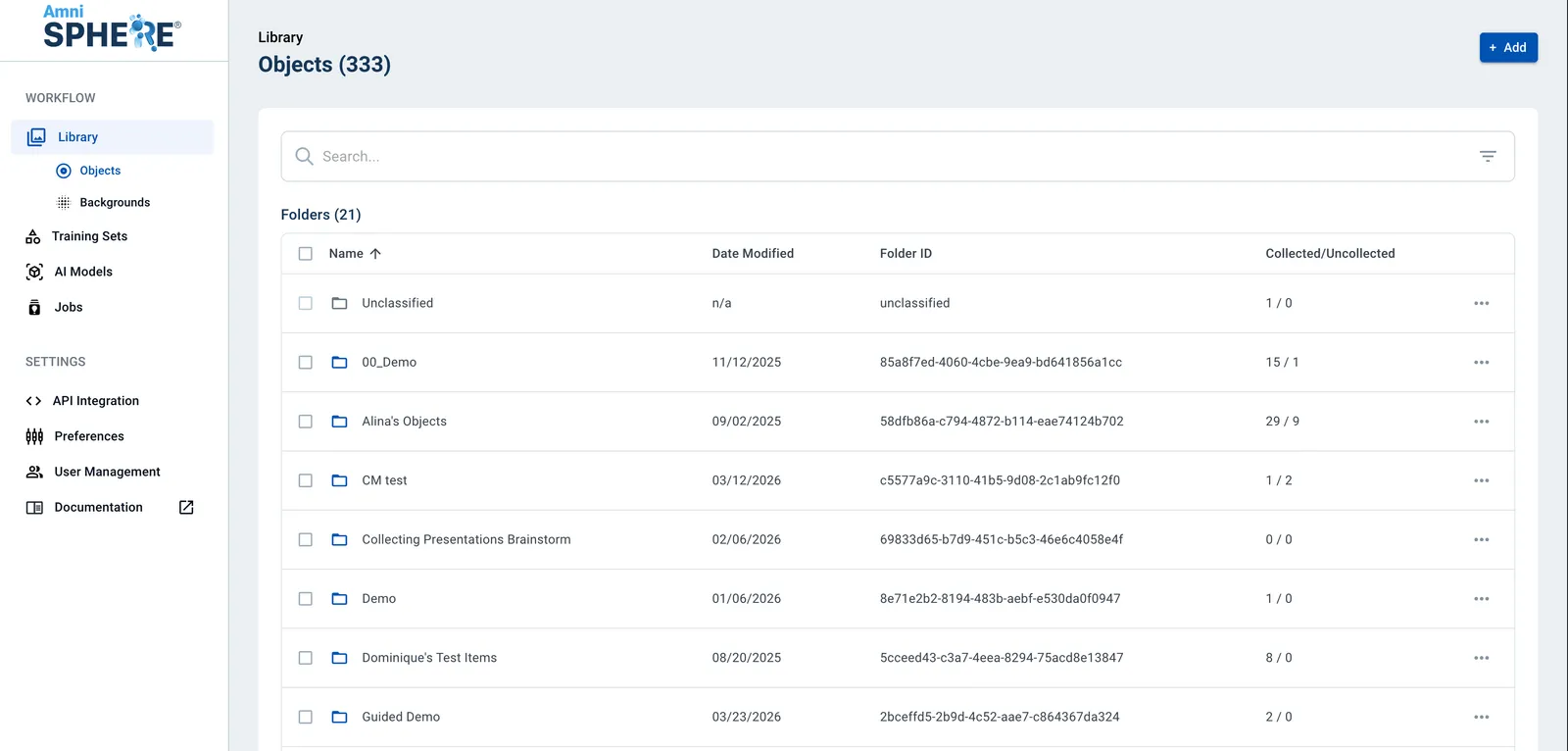
After logging in using your Amniscient credentials, navigate to the Library tab. Make sure you are within the Objects sub-tab. In this tab you can view, edit, and search for objects.
Download Template
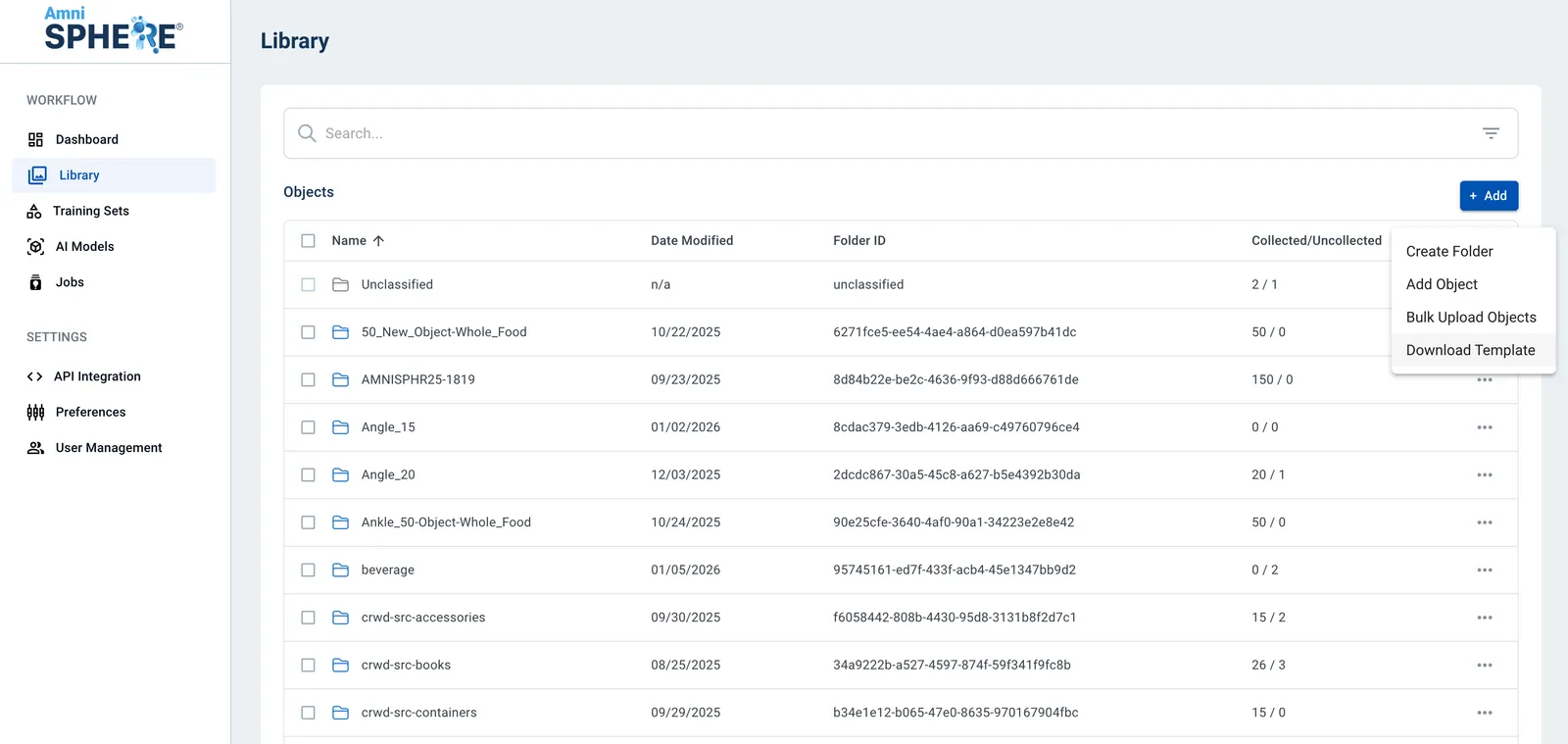
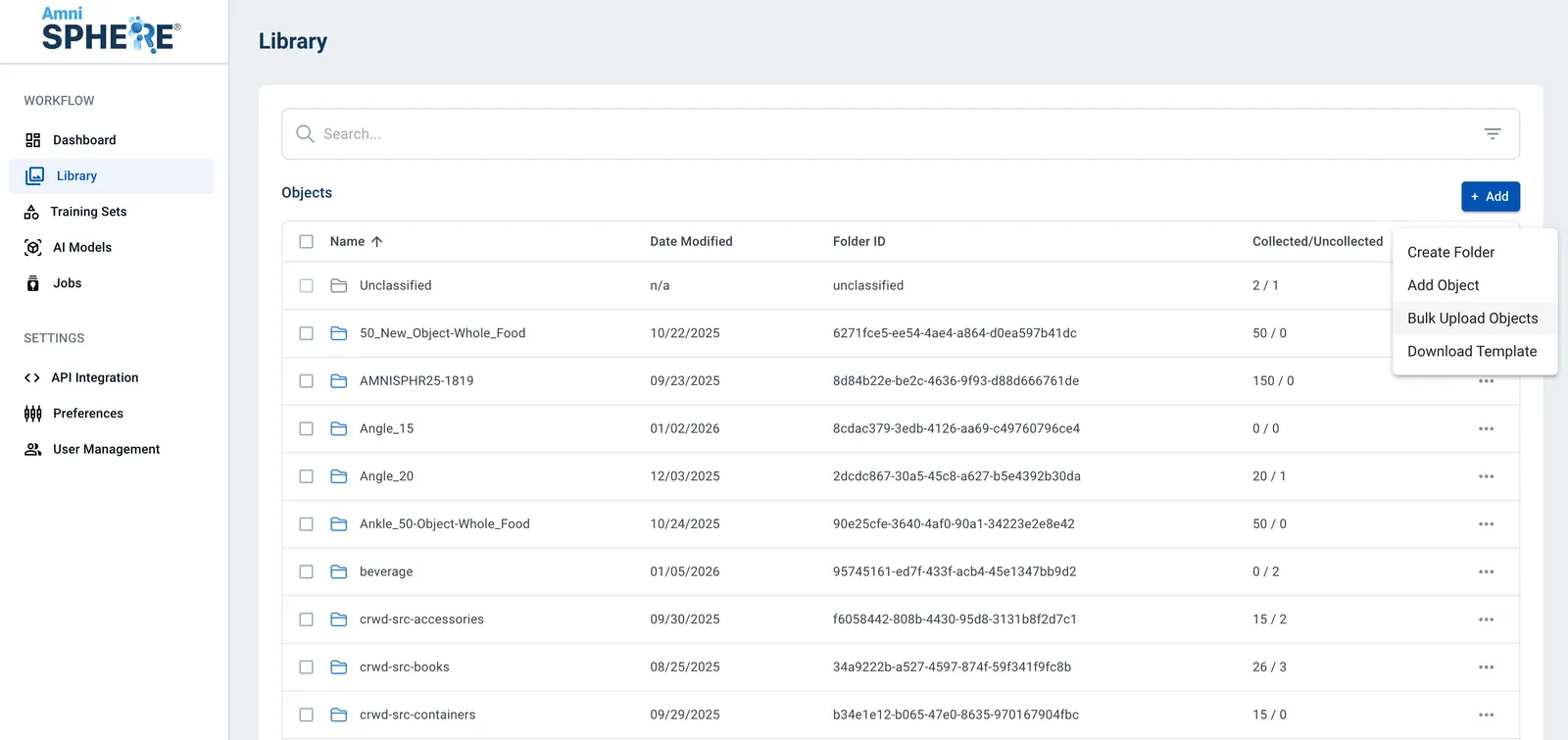
Click on the “Add” button in the upper right corner. Once the dropdown appears, click on “Download Template”.
Review Instructions Tab
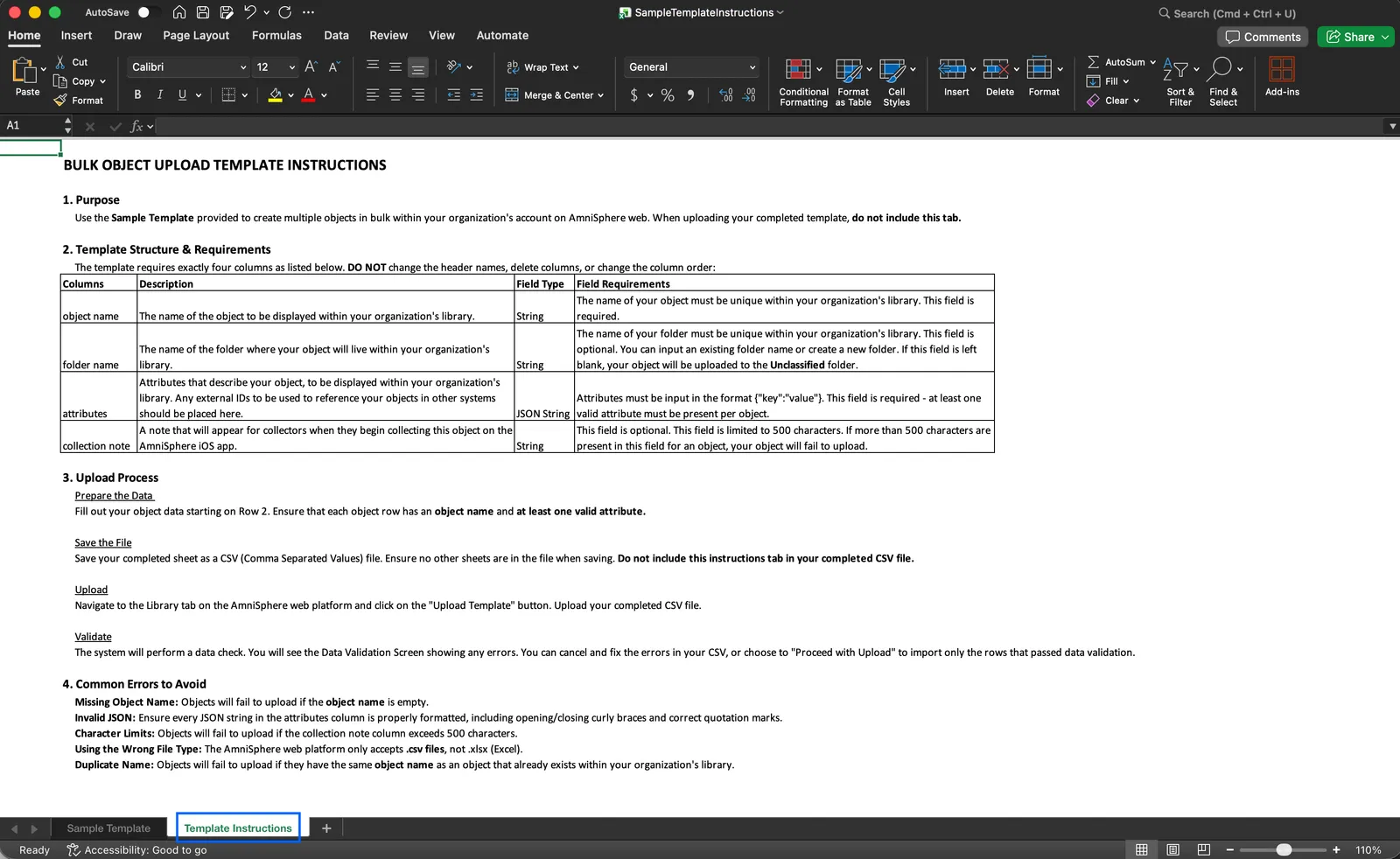
The template you download will be an Excel file that includes a detailed “Template Instructions” tab. Review this tab thoroughly, as it will have the most up to date information on required and optional fields for creating objects in bulk.
Fill in Template
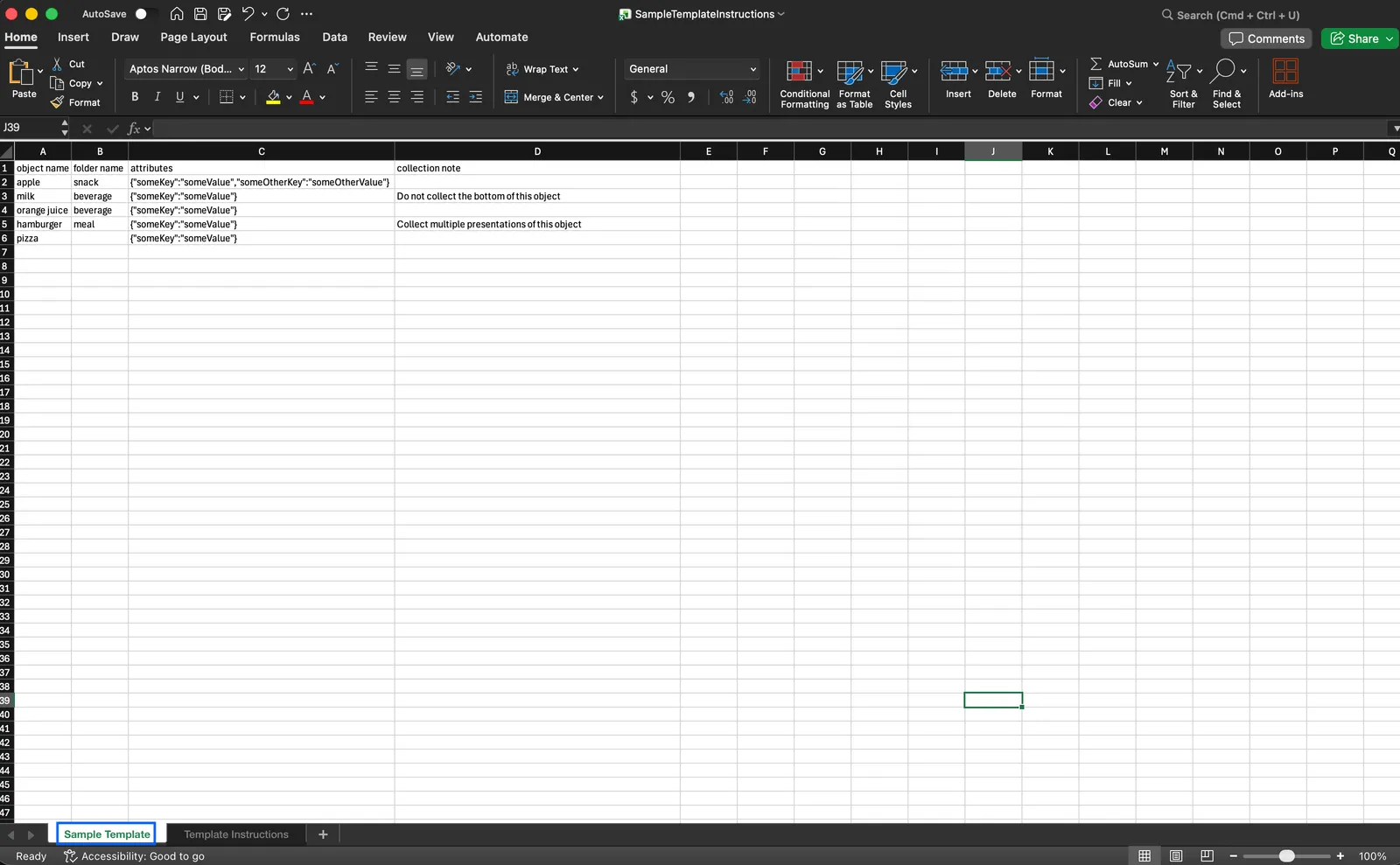
After carefully reviewing the template instructions, start filling in the “Sample Template” tab with the objects you’d like to upload. Each object should be a row within the file, and each row should have an object name (column A) and at least one attribute (column C). Don’t forget to remove the sample objects in the file!
Save File as CSV
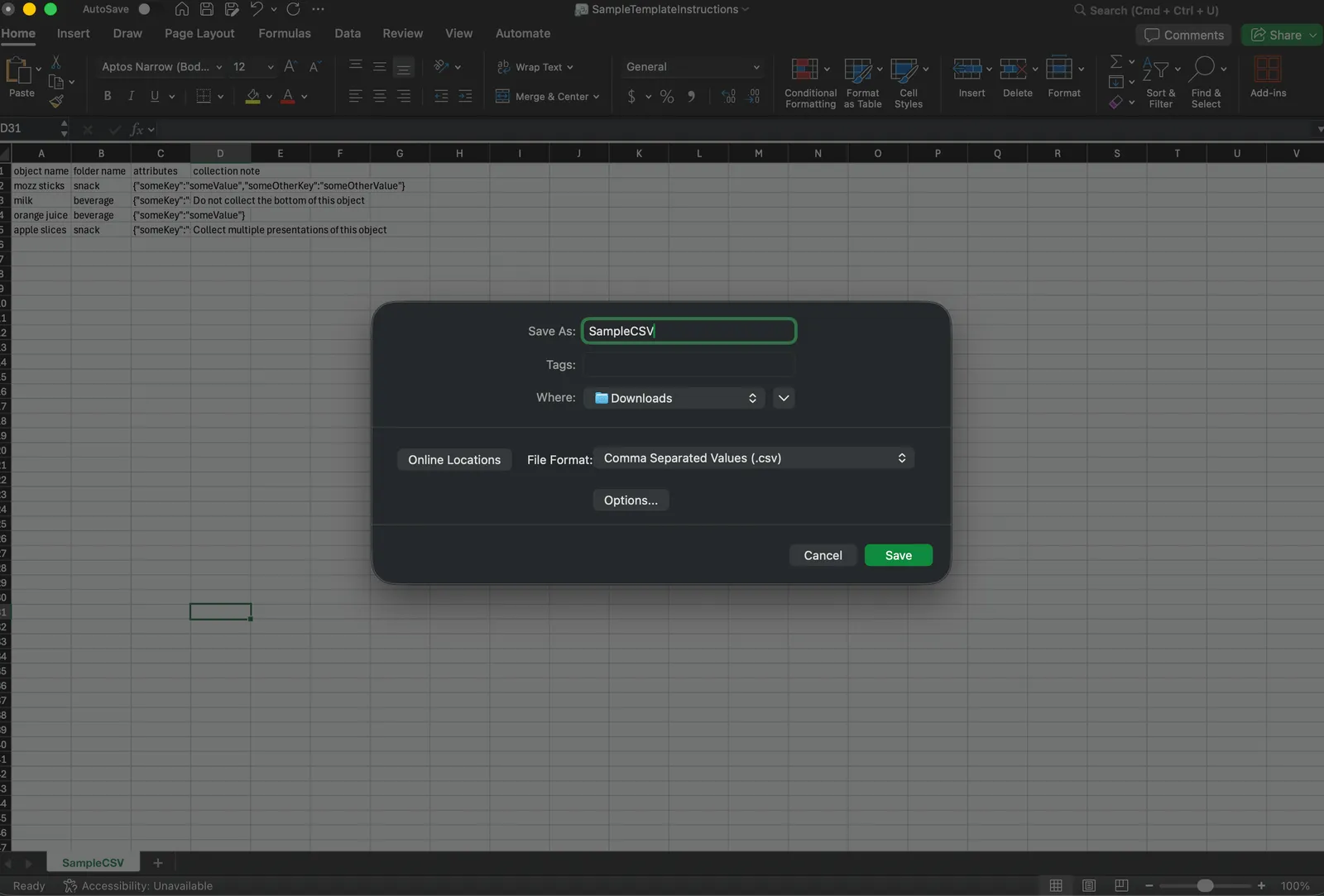
Once you have completed filling in your objects within the template provided, remove the “Template Instructions” tab from the file. Give your file a descriptive name and save it as a CSV format. The AmniSphere web platform does not support file types other than CSV format for bulk upload.
Upload File
After logging in using your Amniscient credentials, navigate once again to the Library tab. Click on the “Add” button in the upper right corner. Once the dropdown appears, click on “Bulk Upload Objects”. Select your CSV file and upload it.
Validate Upload
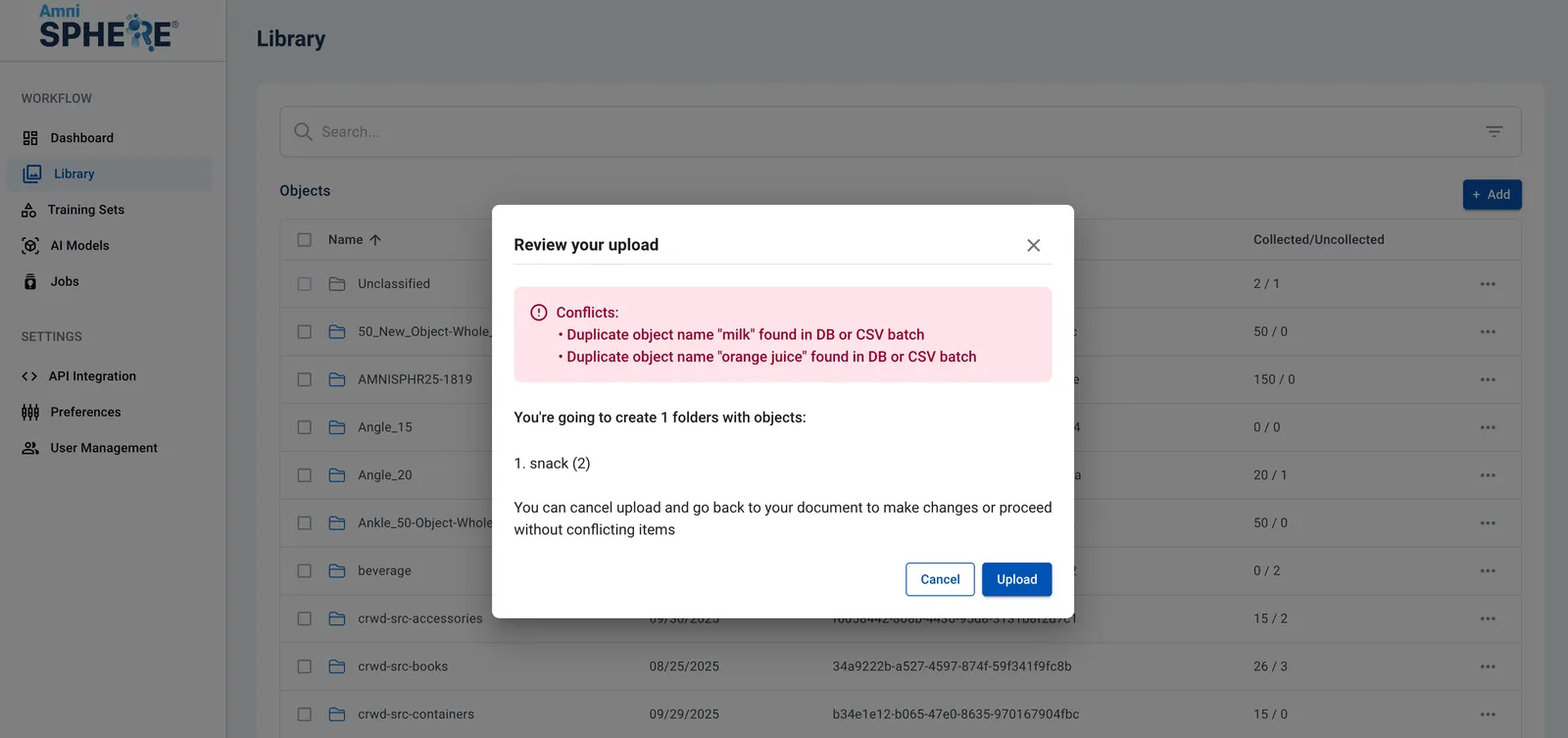
After uploading your file, you will be presented with a review screen. Any rows that resulted in an error will be highlighted at the top of the review window. You can choose to exit the upload screen to resolve these errors within your CSV file, or you can proceed with the upload by clicking on the “Upload” button. Any rows in your CSV file that had errors will not be created as objects within AmniSphere.